Overview

This section highlights the core features, use cases, and supporting notes.

Claude Code is an agentic AI coding assistant for developers who want a terminal-first workflow that can also extend into VS Code, desktop, web, and GitHub automation instead of staying trapped in a single chat window. Its real value comes from official Windows install paths, codebase-aware CLI sessions, visual diff review in VS Code, permission modes that balance autonomy and oversight, practical workflows for exploration and refactoring, and fast-moving official updates that make Claude Code relevant for both solo and team engineering work.

Claude Code is best understood as an agentic coding workflow, not just as an AI chat box for asking questions about code. Anthropic’s official overview describes it as a tool that reads your codebase, edits files, runs commands, and integrates with development tools across terminal, IDE, desktop app, and browser. That framing matters because it sets the right expectation. Claude Code is useful when you want AI to participate in real engineering work such as exploring a codebase, proposing edits, running verification steps, and helping move tasks forward rather than only explaining snippets in isolation.


Annotated screenshot of the official Claude Code product page showing the agentic coding workflow across terminal IDE desktop and web
This product-page screenshot matters because it frames Claude Code as a multi-surface coding workflow, not as a one-tab chatbot. Click the image to open the full-size screenshot.

The strongest fit is for developers who want an AI coding agent for real project work: engineers navigating unfamiliar repos, fixing bugs, drafting tests, reviewing changes, or automating repetitive code tasks from the terminal. It is also a practical option for teams that want one tool to span local work and GitHub automation. Claude Code is less suitable for users who want a static IDE autocomplete tool, a fully no-code experience, or a desktop app that hides command-line concepts completely. The official overview keeps this honest: the CLI is still central, and the most useful workflows assume you are willing to work with repositories, terminals, and permissions rather than avoid them.

The official install guidance is especially valuable because it is unusually concrete. The overview page shows native install, Homebrew, and WinGet options, explicitly notes that Windows requires Git for Windows, and explains that native installs auto-update in the background while Homebrew and WinGet installs do not. That is one of the best practical details on the whole site. It means a reader looking for a Claude Code Windows install guide does not have to guess which route stays current more easily. In most cases, the native PowerShell install path is the cleanest starting point for a personal machine, while WinGet may be more comfortable in managed Windows environments.


Annotated screenshot of the official Claude Code overview page showing native install Homebrew and WinGet options with Windows guidance
The overview screenshot adds real value because it keeps installation tied to the official methods and surfaces the Windows-specific Git requirement before people get stuck. Click the image to open the full-size screenshot.

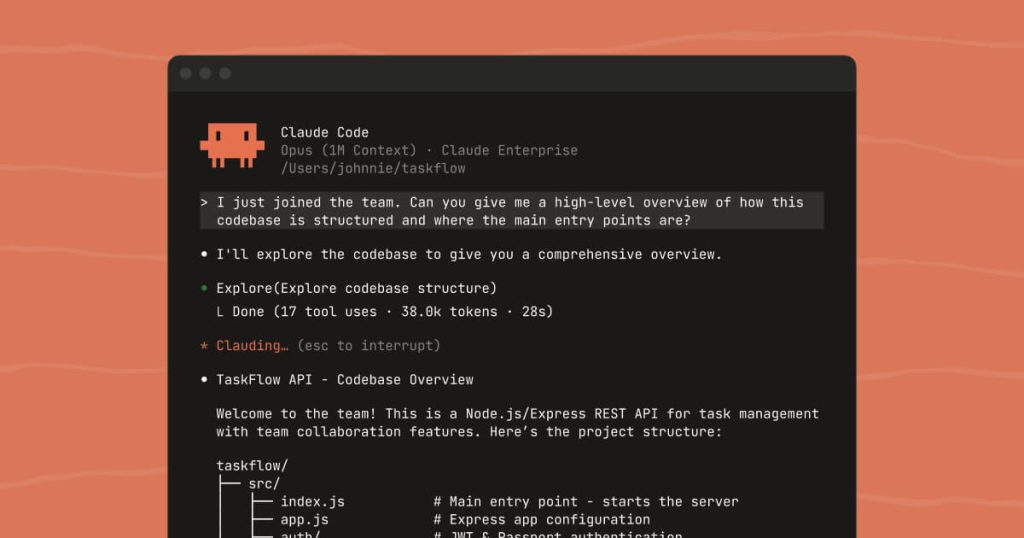
The quickstart page is another reason Claude Code stands out. Anthropic does not leave new users with vague marketing language; it walks through install, login, the first session, the first question, the first code change, Git operations, and later workflows. That matters because terminal AI tools often lose new users right after install. Claude Code becomes easier to trust when the first-run path is explicit: open a project directory, launch claude, ask for a codebase overview, then make a small change with permission review rather than jumping straight into risky automation.


Annotated screenshot of the official Claude Code quickstart page showing the first session flow and initial commands
The quickstart screenshot is useful because it turns Claude Code from a concept into a workable first session with commands a developer can actually follow. Click the image to open the full-size screenshot.

Claude Code is also more flexible than the CLI-only label suggests. The official VS Code guide says the extension provides inline diffs, @-mentions, plan review, conversation history, and multiple conversations directly in the editor. That matters for users who like agentic coding but do not want every review step buried in a terminal window. This is one of Claude Code’s stronger practical advantages: you can keep the terminal-style power while moving change review and context sharing into a visual environment that is easier to inspect carefully.


Annotated screenshot of the official Claude Code VS Code page showing inline diffs permission review and editor integration
The VS Code screenshot matters because it shows how Claude Code can stay reviewable and editor-friendly instead of forcing every interaction into raw terminal output. Click the image to open the full-size screenshot.

Permission modes are where Claude Code feels unusually mature. The official docs explain a spectrum from default to acceptEdits, plan, auto, dontAsk, and bypassPermissions, each with a different tradeoff between convenience and oversight. That is more than a settings detail. It directly answers one of the biggest pain points in AI coding tools: either they interrupt too often, or they act too freely. Claude Code gives users a more precise middle ground, which is especially important when switching between exploratory tasks, routine edits, and sensitive repo work.


Annotated screenshot of the official Claude Code permission modes page showing different autonomy and review settings
The permission-modes screenshot deserves attention because trust and review control are central to whether an AI coding tool is genuinely usable in daily development. Click the image to open the full-size screenshot.

The common workflows documentation is where Claude Code becomes most convincing for practical users. Anthropic documents codebase exploration, bug fixing, refactoring, test work, subagents, plan mode, PR creation, documentation tasks, Unix-style piping, and parallel worktrees. This matters because it shows Claude Code is not limited to demo prompts like “build me a to-do list”. For developers comparing AI coding agents for terminal work, the real differentiator is whether the tool can support messy everyday tasks without collapsing into novelty. The workflows page suggests Claude Code has been shaped around exactly that problem.


Annotated screenshot of the official Claude Code common workflows page showing subagents plan mode and practical engineering tasks
The workflows screenshot is valuable because it shows Claude Code in the kinds of tasks developers actually repeat: understanding repos, fixing bugs, refactoring, testing, and delegating work. Click the image to open the full-size screenshot.

Claude Code also has a real team automation story. The official GitHub Actions guide says a repository admin can run /install-github-app from Claude Code for quick setup, then use @claude mentions in issues or PRs to trigger implementation or review flows. The docs also explain required app permissions, workflow examples, and the move to anthropics/claude-code-action@v1. That is meaningful because many AI coding tools stop at local editing. Claude Code is more interesting when it can extend into PR triage, review, and controlled CI automation instead of forcing teams to invent the whole bridge themselves.


Annotated screenshot of the official Claude Code GitHub Actions page showing quick setup and PR or issue automation
The GitHub Actions screenshot matters because it shows Claude Code reaching beyond local coding into controlled review and automation workflows teams can actually use. Click the image to open the full-size screenshot.

The official “What’s new” page also gives a grounded view of how fast Claude Code is moving. When checked on April 13, 2026, the top weekly digest visible was Week 14 · Mar 30 – Apr 3, covering v2.1.86–v2.1.91. Anthropic highlighted computer use in research preview, /powerup interactive lessons, a per-tool MCP result-size override, and plugin executables on the Bash tool path. That pace is worth noting because it cuts both ways: Claude Code is evolving quickly, which makes the official docs especially important, but it also means users should avoid stale third-party tutorials and keep their install path and habits close to upstream guidance.


Annotated screenshot of the official Claude Code whats new page showing the latest weekly digest and recent version range
The weekly-digest screenshot is useful because Claude Code changes quickly, and the official update feed is the best place to see whether new capabilities are meaningful for your workflow. Click the image to open the full-size screenshot.

Our grounded judgment is that Claude Code is most worth installing for developers who want an AI coding agent that can work with real repositories, permissions, terminal commands, editor review, and team workflows instead of acting like a glorified code explanation tab. It is especially strong for users who want a Claude Code Windows setup, a terminal-first AI coding assistant, or a practical bridge from local coding into GitHub automation. It is less suitable for users who want a fully passive tool with no setup decisions, no repo awareness, and no interest in review controls. Claude Code is strongest when treated as a serious development surface that still needs judgment, not as a one-command replacement for engineering process.


Setup / Usage Guide

Installation steps, usage guidance, and common notes are maintained here.

The safest way to start with Claude Code is to set it up for one real repository and one small practical task before exploring every advanced mode. Do not begin with the loosest permissions or with heavy automation. A good first session should prove four things: installation works, login works, Claude can understand your project, and you can review one small edit safely.

  1. Start from the official Claude Code overview or quickstart page only. If you are looking for a Claude Code download for Windows, the official docs are the real install entry, not third-party software portals.
  2. On Windows, install Git for Windows first if it is not already present. Anthropic's official overview explicitly calls this out, and skipping it is an easy way to create avoidable setup problems.
  3. Choose your install path deliberately. For most personal Windows setups, the native PowerShell command is the cleanest option because Anthropic says native installations auto-update in the background. WinGet is still a reasonable choice if you prefer package-manager visibility, but the docs note that it does not auto-update.
  4. Run the official Windows PowerShell install command in PowerShell, not in CMD. If you see the error about && not being a valid statement separator, you are mixing the CMD instructions into a PowerShell session.
  5. Open one real repository in a terminal and start Claude Code with claude. First use is easier to evaluate in an actual project than in an empty demo folder.
  6. Log in with the account type that matches your setup: Claude subscription, Anthropic Console, or a supported cloud-provider route if your environment uses one. Finish login before judging the tool, because many first-run issues are just account setup problems.
  7. Ask for understanding before asking for edits. A good first prompt is a codebase overview, the main architecture, or the entry points for the part of the repo you care about. This helps Claude build context and helps you judge how well it reads the project.
  8. Use a small first task for editing. Ask Claude Code to make one narrow change, then review the proposed diff carefully instead of giving it a large multi-file refactor on day one.
  9. Learn the permission modes early. Stay in default mode at first, then try plan mode for read-only analysis and acceptEdits only when the task is routine enough that you are comfortable reviewing changes after they are made.
  10. If you work in VS Code, install the official extension after the CLI is working. The editor view is especially helpful when you want inline diffs, @-mentions, and plan review without losing the underlying Claude Code workflow.
  11. Create a small CLAUDE.md file only after you can describe your real preferences clearly. Put in coding standards, test expectations, or architecture rules that genuinely repeat. Avoid turning the file into a giant wish list.
  12. Use the common workflows documentation to expand responsibly. Codebase exploration, bug fixing, refactoring, tests, subagents, and PR creation are all documented, but each one is easier to trust after the small first session already feels solid.
  13. If your team wants automation, add GitHub Actions later rather than immediately. The official docs show /install-github-app for quick setup, but repository permissions and secrets deserve deliberate review before you let Claude act in PRs or issues.
  14. Keep updates tied to upstream guidance. As checked on April 13, 2026, the latest weekly digest visible in the official docs was Week 14 for versions v2.1.86–v2.1.91, which is a reminder that Claude Code moves quickly and official docs matter.
  15. After a week of normal use, decide what role Claude Code should actually play for you. It earns a permanent place when it helps you understand repos faster, reduces repetitive coding work, and stays controllable enough that review does not become stressful.

A practical long-term Claude Code setup usually looks like this: official install path, Git for Windows in place when needed, one real repo first, CLI working before extra surfaces, small reviewed edits before large automation, permission modes chosen to match task risk, VS Code added for visual review when helpful, CLAUDE.md used for real recurring guidance, GitHub automation added only after repo-level trust decisions are clear, and official docs checked regularly because the tool is evolving quickly. That keeps Claude Code useful, readable, and maintainable instead of turning it into an opaque shortcut.

Related Software

Keep exploring similar software and related tools.