Overview

This section highlights the core features, use cases, and supporting notes.

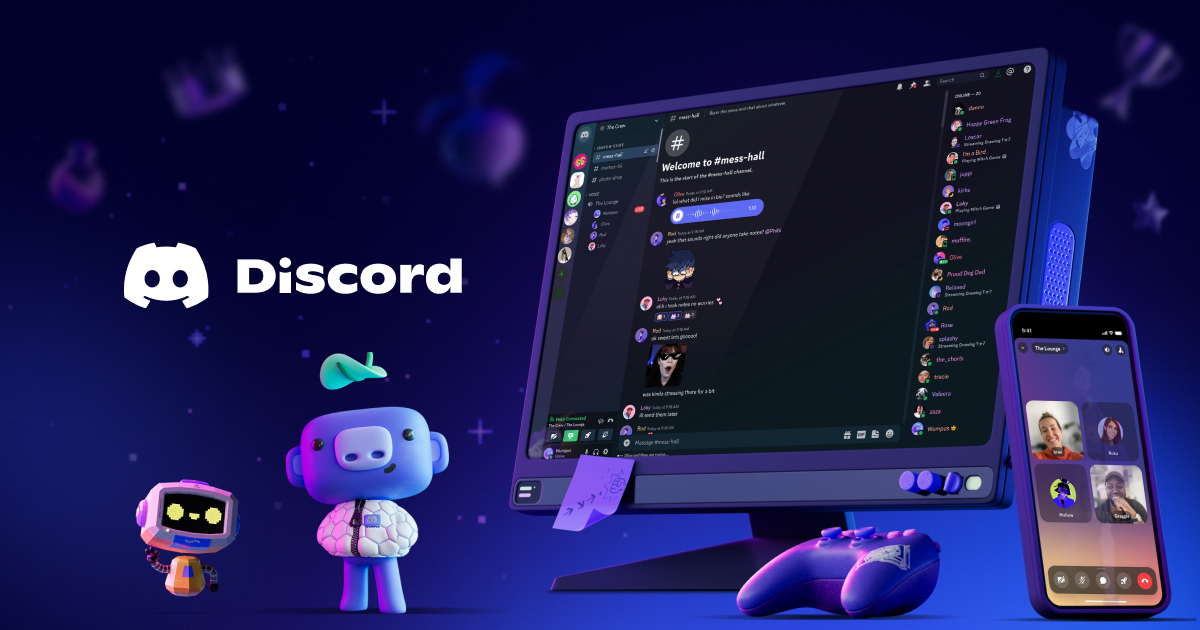
Discord is a Windows chat and voice client built for persistent communities, gaming groups, study rooms, fandoms, and creator servers. It is best for people who want text channels, drop-in voice rooms, direct messages, and screen sharing in one place instead of juggling separate tools. Its real advantage is how naturally it supports active communities, but users should manage notifications carefully because busy servers can become noisy fast.

Discord is no longer just a gaming voice tool. On Windows it works as a full community communication app built around servers, text channels, voice rooms, direct messages, and lightweight screen sharing, which makes it useful for groups that stay active across the day rather than only meeting at one scheduled time.

It fits gaming teams, hobby communities, online classes, remote friend groups, fandom spaces, and creator communities that need a central room for conversation. If people need to move between chat, voice, announcements, and casual collaboration quickly, Discord often feels more natural than mixing separate tools.

What makes Discord worth keeping is its live community structure. Servers can stay organized by topic, voice channels are easy to join and leave, and roles help separate moderators, core members, and visitors without much friction. For active communities, that combination is more valuable than a polished but rigid enterprise workflow.

The tradeoff is noise. A few large servers with default settings can flood your desktop with messages, mentions, and unread badges. Discord is also a weaker fit for formal documentation, approval-heavy business processes, or teams that need strict compliance rules around communication.

My practical recommendation is to install Discord if you participate in ongoing communities or voice groups every week, not just the occasional invite link. Set notification boundaries early, keep important servers organized, and treat the desktop app as a daily communication hub rather than a chaotic message dump.


Setup / Usage Guide

Installation steps, usage guidance, and common notes are maintained here.

1. Download Discord from the official Discord download page and choose the Windows desktop app. For most users, the normal installer is the right choice because it stays updated with fewer manual steps than browser-only use.

2. Install the app to the default location and sign in with your existing account, or create one if you are joining a community for the first time. If you already use Discord in a browser, the desktop client should feel familiar immediately.

3. Open User Settings before joining active voice rooms. Check your microphone, speaker, and camera devices, then decide whether push to talk or voice activity fits your environment better.

4. Join one server first and pay attention to the difference between the server itself, its text channels, and its voice channels. Understanding that structure early prevents a lot of beginner confusion.

5. Adjust notifications before you add more communities. Mute high-traffic channels, reduce unnecessary desktop alerts, and decide which servers deserve mentions or badges on your main device.

6. Test one real interaction, such as sending a message in a text channel, joining a voice room, or sharing your screen with a friend. This confirms that your audio permissions and desktop settings are ready for normal use.

7. Organize your sidebar once you join several communities. Server folders, pinned direct messages, and a cleaner left rail make Discord much easier to use daily.

8. Review overlay, startup, and performance settings if you game or multitask on the same machine. The desktop app is flexible, but it is better to change these settings deliberately than leave them all on by default.

9. Keep separate mental boundaries between social, hobby, and work-like servers. Discord can host all of them, but your attention will stay cleaner if you do not treat every community as equally urgent.

10. Update Discord from the official app and revisit your notification settings whenever the service starts to feel overwhelming. Good settings matter almost as much as the app itself.

Related Software

Keep exploring similar software and related tools.