Overview

This section highlights the core features, use cases, and supporting notes.

FreeCAD is an open-source parametric 3D modeler for Windows users who need editable design history, broad file-format support, and a flexible CAD environment for product, engineering, fabrication, or learning work. It is especially useful for users who want control over sketches, dimensions, and modular workbenches rather than a locked-in commercial CAD workflow.

FreeCAD makes the most sense when we judge it as a parametric CAD environment for real design work rather than as a casual 3D drawing toy. On April 15, 2026, the official site still positioned it as an open-source parametric 3D modeler built around editable model history, broad format support, and multiple workbench-driven use cases. That framing matters because users who search for a free CAD tool often need to know one thing first: can the software support repeatable design changes instead of forcing them to rebuild geometry from scratch every time an idea changes?

Annotated screenshot of the official FreeCAD homepage
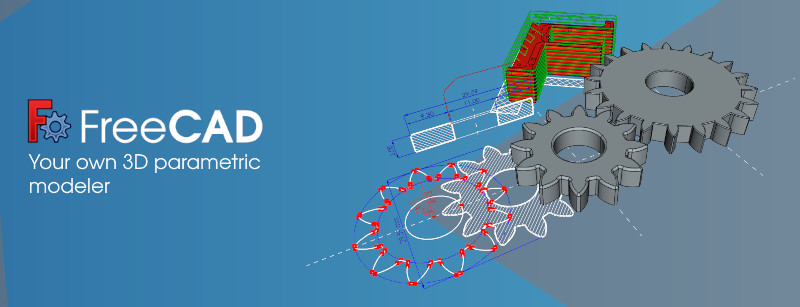
The homepage matters because FreeCAD is clearly presenting itself as a parametric modeler for real design workflows, not as a lightweight viewer.

The most practical part of the official positioning is the sketch-to-model workflow. The homepage explains that FreeCAD can build 3D objects from constrained 2D geometry and also extract production-ready details from 3D models. That is important because it tells users what the software is really for: not just shaping objects visually, but controlling dimensions and revising designs through a more engineering-minded process. For learners and technical users, this is one of the strongest reasons to choose FreeCAD over simpler but less structured 3D tools.

Annotated screenshot of the FreeCAD sketch to 3D section
This section matters because 2D sketch constraints flowing into 3D design is one of the clearest real-world starting paths for parametric CAD.

FreeCAD also tries to balance seriousness with accessibility. The homepage openly speaks to professional and technical tasks, but also to prototyping, 3D printing, furniture design, learning CAD, and community-driven growth. Our grounded judgment is that this is one of FreeCAD’s real strengths. It does not need to be treated as only for engineers, but it also should not be sold as instantly effortless. FreeCAD becomes most valuable when users actually want a broad toolset and are willing to invest a bit of thought into choosing the right workbench and workflow.

Annotated screenshot of the FreeCAD professional positioning section
Professional positioning matters because FreeCAD is aiming to be credible for technical tasks, not just for casual experimentation.

Format support is another practical reason to keep FreeCAD around. The official site highlights formats such as STEP, IGES, STL, SVG, DXF, OBJ, IFC, and DAE. That matters because CAD software becomes far more useful when it can sit inside a real workflow instead of demanding one isolated file type. If a Windows user needs to inspect imported geometry, prepare something for 3D printing, move between CAD and CNC-style paths, or exchange files with other tools, format flexibility becomes one of the first things to check.

Annotated screenshot of the FreeCAD format support section
Format support matters because STEP, STL, DXF, SVG, and similar paths often decide whether a CAD tool can fit into an existing workflow.

The official homepage also makes clear that FreeCAD is not one narrow tool. Product design, mechanical engineering, architecture, BIM, CAM, FEA, geodata, and even robot simulation are all part of the public positioning. This is both a strength and a warning. It means FreeCAD can stay relevant as your needs grow, but it also means new users should lower one expectation before installing: the best first-use path is not to understand everything at once. It is to start with one task and one workbench that fits that task.

Annotated screenshot of the FreeCAD designed for your needs section
User fit matters because FreeCAD is broad enough for many workflows, but new users usually benefit from starting with one workbench and one task.

The official download page is unusually helpful for practical decisions. During this run, it exposed the current stable version, Windows installer and portable options, and the note that Windows 8 is the minimum supported version. That gives users a clean starting point. A portable package can make sense for restricted environments or cautious testing, while the installer is often better for normal daily use. The key practical judgment here is simple: use the stable release first unless you already know why you need something more experimental.

Annotated screenshot of the FreeCAD stable download page
The stable download page matters because Windows users need a clear choice between installer and portable builds before they begin.

The same download page also does something responsible that many projects skip: it explains development builds honestly. FreeCAD openly says weekly builds exist for testing bug fixes and new features, but also warns that they can be slower, less stable, and less suitable for production work. This is exactly the kind of detail users need when a tool may end up involved in real design files. For most readers of this page, stable should remain the default and weekly builds should stay a conscious advanced-user choice.

Annotated screenshot of the FreeCAD development builds section
Development builds matter because FreeCAD clearly separates weekly testing builds from the safer stable path for real work.

The Addon manager note on the official downloads page is also more important than it first looks. FreeCAD’s long-term value often grows through extra modules and macros, and the project now points users toward installing them directly from within the application. That matters because it turns FreeCAD from a fixed CAD program into a broader engineering toolkit that can be shaped over time. Our grounded judgment is that FreeCAD is most worth installing for Windows users who want a serious free CAD environment with parametric control, broad formats, and modular growth. It is less suitable for people who want the simplest possible onboarding with no learning curve and no workbench decisions.


Annotated screenshot of the FreeCAD add-on manager section
Addon access matters because FreeCAD often becomes more useful over time through extra modules and macros installed from the built-in Addon manager.

Setup / Usage Guide

Installation steps, usage guidance, and common notes are maintained here.

The best way to start with FreeCAD is to treat it as a parametric CAD workspace for one real design task, then choose the stable Windows build, open one clean project, and avoid trying to understand every workbench on day one.

  1. Open the official FreeCAD homepage at https://www.freecad.org/, then go to the official downloads page at https://www.freecad.org/downloads.php. This keeps both your installation choice and your product overview inside the same official source.
  2. Choose the stable Windows build first unless you already have a strong reason to test newer code. During this run on April 15, 2026, the official downloads page exposed both an installer and a portable .7z package for Windows and stated that Windows 8 is the minimum supported version.
  3. If you want the simplest normal setup, use the installer. If you need a lower-commitment test or work on a machine where installation rights are limited, the portable package can be the better starting path.
  4. Do not start with the weekly development build unless you are specifically testing new fixes or features and are comfortable with the stability tradeoff. The official page is clear that these builds are not the default production choice.
  5. Launch FreeCAD and begin with one concrete task, not with every module. Good first examples are a simple part concept, a basic 2D sketch that should become a 3D object, or an imported STEP or STL file you want to inspect.
  6. Create a new document and save it early so your work has a stable project file from the beginning. This is a practical habit in any CAD tool, especially one where designs may evolve through many revisions.
  7. If your goal is part design, begin with a simple sketch-based path instead of jumping between unrelated workbenches. The official site strongly emphasizes constrained 2D geometry leading into 3D work, and that is the most natural first-use direction for many users.
  8. Use one realistic import or export test early. Because FreeCAD publicly highlights support for formats such as STEP, IGES, STL, SVG, DXF, OBJ, IFC, and DAE, it is worth confirming which of those actually matter in your own workflow.
  9. Lower one expectation before going further: FreeCAD is broad, and breadth can feel heavy if you explore everything at once. Learn the workbench or file path that matches your actual task first, then expand later.
  10. Once the core workflow feels stable, review the Addon manager route mentioned on the official downloads page. Extra modules and macros can extend FreeCAD significantly, but it is better to add them after the base workflow already makes sense.
  11. Keep updates tied to the official homepage and official downloads page, and stay on the stable branch for real design work unless you are intentionally helping test weekly builds.
  12. After several real sessions, judge FreeCAD on one practical question: does its parametric control and file-format flexibility outweigh the learning time required to become comfortable with its workbench-based workflow?

A practical FreeCAD setup usually means one stable Windows build, one clearly chosen task, one early saved project, one sketch-to-3D or import/export test, and slower expansion into extra workbenches or add-ons only after the base workflow feels reliable.

Related Software

Keep exploring similar software and related tools.