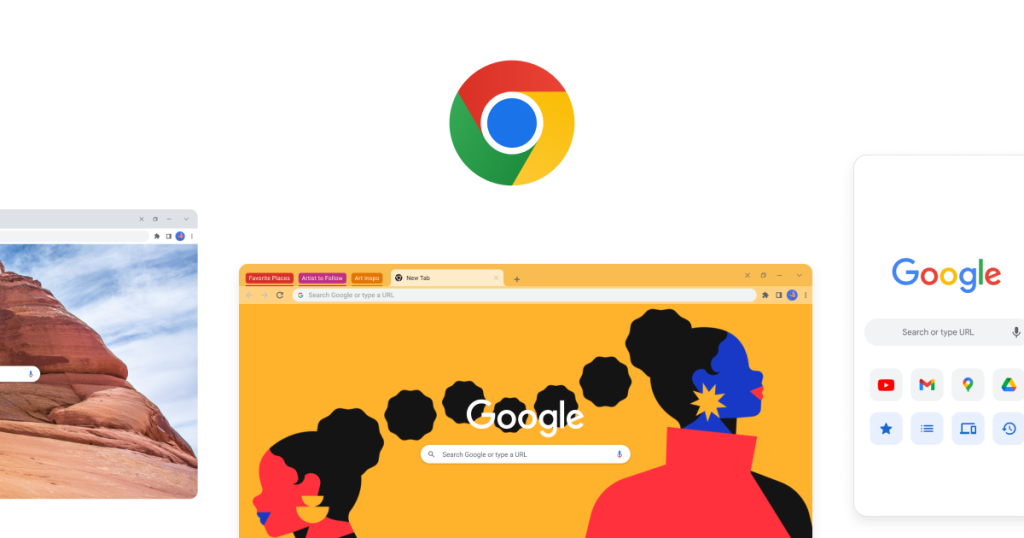
Google Chrome is easy to underestimate because it is so familiar. The official Chrome homepage is a useful reminder that Chrome is not only a brand-default browser. It is a constantly updated browsing platform that tries to balance speed, compatibility, sync, security, passwords, and productivity features in one place. The homepage highlights ideas like performance, tab control, Google Password Manager, and automatic updates. That matters because the best browser for Windows and Mac is not always the one with the flashiest feature pitch. For many people, Chrome’s real advantage is that it handles routine web work reliably while still offering enough control when browsing starts to get messy.

The official install guide is more valuable than random mirror pages because it keeps the browser setup grounded in supported paths. On April 13, 2026, the official help page still framed Chrome as a free web browser download and organized installation guidance for Windows, macOS, Linux, and Chromebook users. The page also reminds users to check operating-system support and other requirements before downloading. That is practical because Chrome is one of the most widely used browsers on desktop, but clean installation still matters when you are setting up a work machine, troubleshooting profile problems, or avoiding unofficial download wrappers.

Performance controls are one of the clearest reasons Chrome remains practical for heavy browsing. The official performance help page says Memory Saver deactivates tabs you are not using so active tabs run more smoothly, and it offers Moderate, Balanced, and Maximum tab-deactivation levels. The same page explains that Energy Saver reduces image capture rate and other background tasks when your device is unplugged or the battery is low, and it also covers page preloading choices. This matters because one of Chrome’s oldest pain points is memory usage. The browser is far more usable today when you treat Memory Saver and Energy Saver as real operating controls rather than as hidden settings you never visit.

Tab management is another area where Chrome is better than many casual users realize. The official tabs guide explains tab groups, Tab Search, address-bar search with @tabs, and named windows for organizing open work. The same page says that when browsing history and tabs are synced with your Google Account, changes to tab groups are automatically saved and synced across devices. That is one of the biggest practical reasons Chrome remains a strong browser with tab groups and sync: the browser can turn a messy pile of research, work, and personal tabs into something closer to recoverable workflow state instead of disposable chaos.

Security is another area where Chrome is strongest when used intentionally. The official safety and security page says Chrome users can rely on features such as Safety Check and Safe Browsing, and it also documents settings like secure DNS and V8 security controls. That matters because Chrome’s security story is not only about patches in the background. It is also about surfacing problems such as risky sites, compromised passwords, or stale settings before they turn into bigger issues. For users searching for a secure web browser for Windows or Mac, Chrome is most convincing when Safety Check becomes a habit instead of a forgotten settings panel.

Password handling is another place where Chrome is more capable than the bare save-password prompt suggests. The official password help page says Google Password Manager can save passwords to your Google Account when you are signed in to Chrome, or store them locally on your device when you are not signed in. That distinction is practical. It means Chrome can fit both users who want cross-device convenience and users who prefer a more local setup. Chrome is not a full replacement for every dedicated password manager, but as a browser with built-in password manager features, it becomes much more useful when you intentionally decide whether passwords should live in your account or only on the device you are using.

Translation is another practical Chrome feature that helps more in real work than in product marketing. The official translation guide says Chrome can translate full pages from the address bar, translate by right-clicking on a page, and translate selected text. The same page points users toward Live Translate for audio-related translation paths. This is useful because Chrome is often the best browser with built-in translate for people who regularly read multilingual documentation, research, shopping pages, or support articles. It reduces the need to jump between tabs or paste text into separate tools just to understand one page.

The extension ecosystem is still one of Chrome’s biggest advantages, but it is also one of the easiest ways to make the browser worse if you install carelessly. The official extensions page says you customize Chrome on desktop by adding extensions from the Chrome Web Store, and it also documents how to manage them, repair corrupted extensions, allow incognito use, and control site access permissions such as whether an extension can read and change site data only when selected or on specific sites. The page also warns about trust signals around Enhanced Safe Browsing and unsupported extensions. That is important because Chrome extensions are powerful, but the healthiest setup is usually a small, trusted set with deliberate permissions instead of a long pile of add-ons you forgot about months ago.

Our grounded judgment is that Google Chrome remains one of the most practical mainstream browsers when you need compatibility, synced browsing, built-in translation, a huge extension ecosystem, and enough controls to keep performance and security under control. It is especially good for users who already live in web apps and want a browser with tab groups, Memory Saver, Google Password Manager, and a mature support ecosystem. It is less ideal if you install too many extensions, never clean up tabs, or want a browsing setup with minimal connection to a Google account. Chrome is strongest when you use it as a managed work tool, not just as the browser that happened to come first.