Okular is best understood as a universal document viewer rather than as only a PDF reader. On April 15, 2026, the official homepage still presented it with that exact positioning, and that is the right place to start when judging whether it belongs in a Windows workflow. Many users do not just open PDFs. They move between technical manuals, ebooks, scanned images, comic archives, and notes. A tool that can bring those reading tasks into one application can reduce unnecessary switching and make document work calmer.

The format question is one of Okular’s strongest practical advantages. The homepage highlights support for many formats, and this matters because a reader who works with PDFs, EPUB files, comic-book style documents, images, and Markdown often does not need five different viewer apps. That kind of flexibility is especially useful on Windows when you want one dependable document tool for reading, checking, and quickly comparing files instead of building a patchwork of separate viewers.

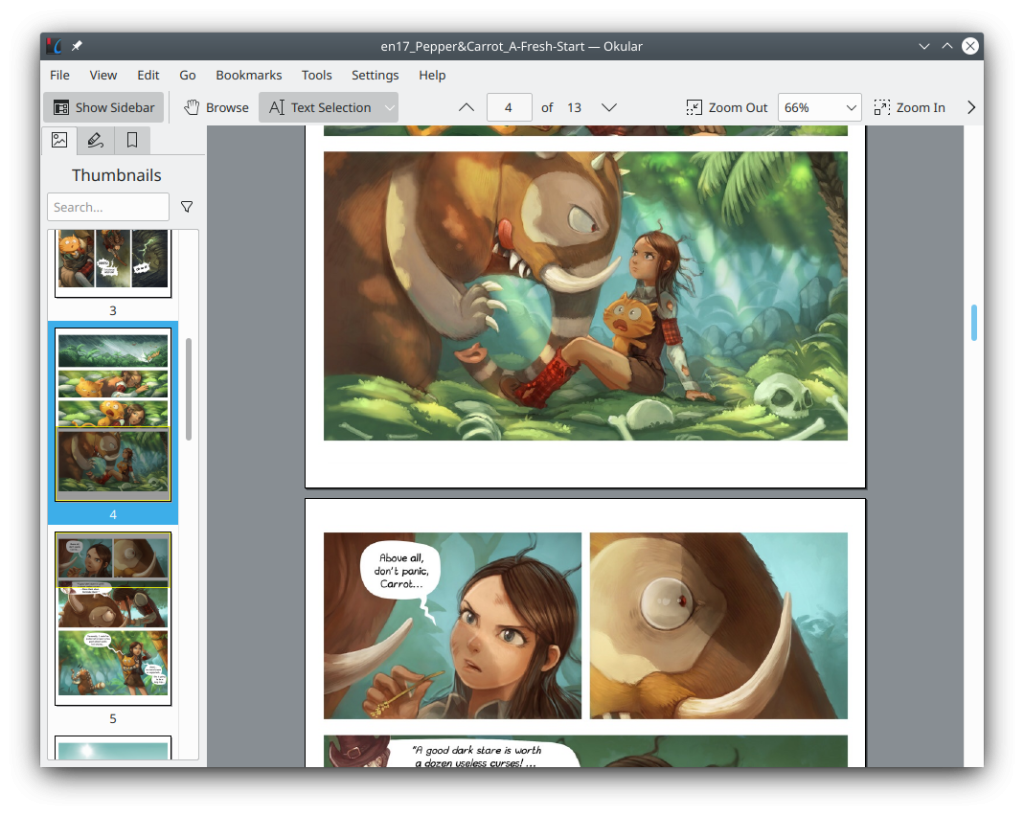
The official site also makes a point of calling out an advanced user interface. That is not empty marketing language in this context. Document viewers become more useful when page navigation, zoom controls, sidebar tools, and reading actions are easy to reach while you stay focused on the file itself. For readers who spend time inside long manuals, research papers, or dense reference documents, interface depth can matter more than cosmetic design.

Okular looks especially worthwhile for people who review PDFs instead of only reading them. The homepage explicitly highlights PDF annotation, and that alone can change how useful a viewer feels in daily work. If a document viewer can let you mark important sections, leave review notes, or keep reference feedback inside the same workflow, it stops being a passive viewer and becomes a practical review tool for study, office, and project handoff work.

Text selection and magnifier-style reading tools are another real reason to keep Okular installed. The official homepage surfaces text selection directly, and this is more practical than it sounds. In real reading workflows, users often need to copy a paragraph, inspect small details, or pull text from a manual while they work somewhere else. A document viewer that handles these simple tasks well can save more time than a longer feature checklist.

The navigation side of Okular also deserves attention. The homepage highlights content-at-a-glance viewing, which points readers toward thumbnails and structural panels as part of the experience. That matters because long files become more manageable when the viewer helps you move, skim, and return to the right place quickly. For textbooks, contracts, research PDFs, or any other long document, this kind of navigation support is often more important than raw opening speed.

One of the more distinctive signals on the official homepage is signature support. That suggests Okular is thinking about document trust and real PDF workflows, not only about casual reading. For users who receive signed PDF files, need to inspect signature-related information, or simply want a document viewer that takes serious PDF use cases into account, this is a meaningful point in Okular’s favor.

The Windows installation guidance is also refreshingly clear. During this run, the official download page stated that the Microsoft Store is the recommended place to install Okular on Windows, while also listing nightly builds for users who specifically want them. That is a healthy default. Normal users should start with the recommended Windows path first, and only consider nightly builds when they understand why they need a testing build and are comfortable with the tradeoff.

Our grounded judgment is that Okular is most worth installing for Windows users who read and review documents often enough that a more capable PDF and ebook viewer starts to pay off. It is especially suitable when you want one multi-format document viewer for Windows instead of separate apps for PDF, EPUB, images, or comic-style files. It is less suitable for people who only open an occasional file and do not need annotation, navigation panels, or serious document-reading tools beyond the most basic viewer behavior.