This section highlights the core features, use cases, and supporting notes.
PeaZip is most useful when it is judged as a cross-platform open-source archive manager rather than as only a backup ZIP opener. The official PeaZip homepage, Windows 64 bit download page, Linux page, macOS page, FAQ, screenshots page, changelog, sources page, plugins page, and themes page checked on April 19, 2026 all point to a broader desktop utility for archive browsing, extraction, compression, format coverage, interface customization, and long-term maintenance. The homepage currently shows PeaZip 11.0.0 and presents the tool across Windows, Linux, and macOS instead of limiting it to one operating system. That positioning matters because archive software is easiest to underestimate when it is described only as a ZIP opener. The Windows page frames PeaZip as a free 7Z RAR TAR ZIP files opener and an alternative to WinRar and WinZip, while the screenshots page makes it clear that the program also acts as a file manager and archive browser with drag and drop, context menus, and dark mode. The FAQ, changelog, and sources pages further show that the project has visible support, release notes, CVE and issue tracking references, and a documented build path with Lazarus and FPC. What keeps PeaZip worth considering is the combination of practical format work and open technical posture. The plugins page exposes additional modules for formats such as UNACE and UNRAR or UNRAR5 plus self extracting modules, while the themes page shows the GUI can be customized instead of remaining fixed forever. That makes PeaZip look more like a maintained archive workspace than a one-button extractor. Our grounded judgment is that PeaZip is strongest for Windows users and technical desktop users who want one free archive manager with broad format support, archive browsing, extraction, compression, visible maintenance history, and an open-source posture they can actually inspect. It is a weaker fit for users who only need the most basic built-in unzip action once in a while or who specifically want a commercial archive suite with tightly integrated proprietary extras. PeaZip looks most defensible when the real need is a capable long-term archive utility rather than a minimal unzip dialog.
The current English page for PeaZip is still too thin for what PeaZip now shows on its own official site. The homepage checked on April 19, 2026 presents PeaZip as a free file archiver utility for opening and extracting RAR, TAR, and ZIP files and currently shows version 11.0.0. That matters because PeaZip should be judged as a broader archive manager rather than as a tiny unzip helper.
The homepage matters because it frames PeaZip as a broader archive manager with visible cross-platform support and technical depth.
The official platform pages make the distribution model clearer. The Windows page calls PeaZip a free 64 bit archive manager and a WinRar or WinZip alternative. The Linux and macOS pages show that the project still maintains platform-specific install surfaces instead of hiding support behind one generic download button. That matters because archive utilities often live in daily workflows across different systems, and PeaZip is clearly trying to serve more than one desktop platform.
The Windows page matters because it gives a clear official install path and licensing posture for the main desktop target.The Linux page matters because it reinforces PeaZip as a real cross-platform archive manager rather than a Windows-only utility.The macOS page matters because it turns cross-platform support into a documented installation path instead of a vague promise.
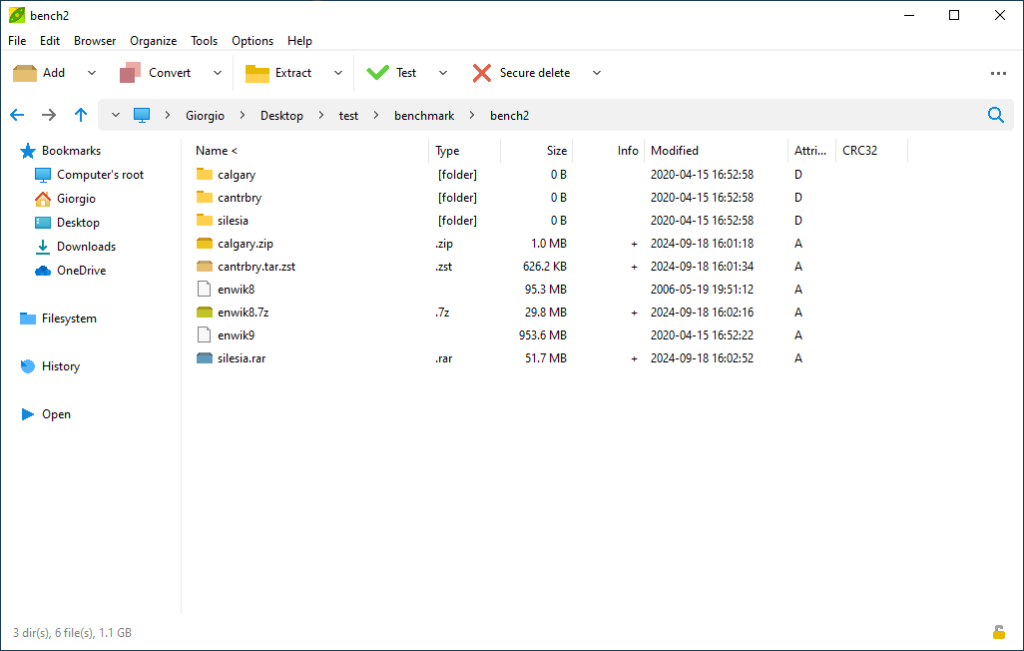
The support and interface pages deepen the picture. The FAQ links into online tutorial material, issue tracker and CVE information, change log references, and policy pages. The screenshots page shows that PeaZip works as a file manager and archive browser with drag and drop, context menus, and dark mode instead of limiting itself to one extraction dialog. That matters because users often keep an archive utility for years, and usability plus support matter as much as raw format coverage.
The FAQ matters because archive tools need a visible operational help surface, not only a download link.The screenshots page matters because it reveals how much archive browsing and file management PeaZip is trying to cover.
The changelog, sources, plugins, and themes pages show why PeaZip feels more mature than a simple archive opener. The changelog keeps fixes and release notes visible. The sources page documents how to compile the project with Lazarus and FPC and even mentions porting to new operating systems and architectures. The plugins page exposes additional modules such as UNACE and UNRAR or UNRAR5 support and self extracting modules. The themes page shows that the GUI can be customized. That matters because a long-term desktop utility becomes more defensible when maintenance, extensibility, and customization are all visible.
The changelog matters because visible maintenance history is part of whether a desktop utility stays trustworthy.The sources page matters because it turns PeaZip’s open-source posture into a practical build and porting workflow.The plugins page matters because advanced archive work often depends on optional format coverage and packaging modules.The themes page matters because customization can help a desktop utility remain comfortable over time.
Our grounded judgment is that PeaZip is strongest for Windows users and technical desktop users who want one free archive manager with broad format support, archive browsing, extraction, compression, visible maintenance history, and an open-source posture they can actually inspect. It is a weaker fit for users who only need the most basic built-in unzip action once in a while or who specifically want a commercial archive suite with tightly integrated proprietary extras. PeaZip looks most defensible when the real need is a capable long-term archive utility rather than a minimal unzip dialog.
Setup / Usage Guide
Installation steps, usage guidance, and common notes are maintained here.
The best way to start with PeaZip is to treat it as a full archive manager rather than as only a one-off ZIP extractor. The official PeaZip materials checked on April 19, 2026 show a project with platform-specific downloads, support pages, screenshots, release notes, source code guidance, plugins, and themes.
Start from the official homepage at https://peazip.github.io/ so you evaluate PeaZip as the project presents it: a free file archiver utility with cross-platform support.
If you are on Windows, use the official Windows 64 bit page at https://peazip.github.io/peazip-64bit.html for the current download path and release context.
Before moving old archive workflows into it, confirm the formats you actually use most often. PeaZip clearly positions itself around broad archive coverage, and this is one of its main advantages.
Test a few practical tasks first: open an archive, extract selected files, create a new archive, and compare the workflow with whatever tool you already use.
Use the screenshots page to learn the file manager and archive browser surfaces. PeaZip is easier to judge once you see that it covers more than a single extract button.
Read the FAQ when you hit an unusual case. The support surface also links into issue tracking and CVE references, which is helpful for a utility that may stay on a machine for years.
If you care about maintenance and trust, scan the official changelog before standardizing the tool. Visible fixes and release notes matter for long-term desktop utilities.
If you need deeper technical confidence, inspect the sources page. It explains how the project can be built from source and ported to additional platforms and architectures.
Use plugins only when your workflow genuinely needs extra format modules or self-extracting features. Optional modules are a strength, but they should still be introduced deliberately.
If you expect PeaZip to remain in daily use, review the available themes so the interface stays comfortable for the way you work.
Finish the evaluation with one practical question: does PeaZip cover your real archive workflow with enough clarity and format depth to replace or complement the tools you already rely on?
A practical PeaZip setup usually means starting from the official Windows download page, proving a few real archive tasks first, then using the FAQ, changelog, plugins, and themes only where your long-term workflow genuinely benefits from them.
Related Software
Keep exploring similar software and related tools.
Node.js is a free, open-source, cross-platform JavaScript runtime that lets you run JavaScript for servers, APIs, command-line tools, scripts, and build workflows, backed by npm and a large first-party documentation ecosystem. Its real strength is not only backend JavaScript, but the way runtime, package management, CLI tooling, REPL workflows, and a built-in test runner can reduce setup friction for developers who want one practical platform from prototype to production.
Python is a general-purpose programming language that stays popular because it is readable, widely taught, and useful across automation, data work, AI, backend services, and scripting. It is one of the easiest languages to start with while still being powerful enough for serious long-term projects.
Visual Studio Code is worth recommending when it is judged as a practical development workspace instead of only as another text editor. The official materials checked on April 22, 2026 still position VS Code through its main site, documentation hub, download page, monthly updates, getting-started guide, themes guide, CLI guide, terminal basics, source-control overview, and settings-sync docs. That combination matters because many users do not only need a place to open files. They need an editor that can scale from note-sized edits to real development tasks with extensions, Git workflow, terminal access, language support, and a setup path that stays understandable for new and experienced users. VS Code is strongest for developers, technical learners, script writers, DevOps users, and general coding work where flexibility matters more than a giant IDE. It is weaker for readers who need every heavyweight enterprise IDE feature out of the box or who want an editor with almost no customization choices at all. Our grounded judgment is that VS Code still deserves to be recommended as one of the safest default development workspaces for Windows users because it balances approachability, extension depth, and official guidance better than many alternatives.
Rust is worth recommending when it is judged as a language-plus-toolchain ecosystem instead of only as another programming language homepage. The official materials checked on April 22, 2026 still position Rust through its main site, install guide, Rust book, Cargo book, Rust By Example, the installation chapter, the Hello Cargo chapter, the standard library docs, Clippy docs, and the Rust Playground. That combination matters because many users do not only need syntax. They need a practical route from installation to building, formatting, linting, learning, and testing real code. Rust is strongest for developers who care about performance, correctness, tooling quality, and long-term maintainability, especially when they are willing to learn a stricter model than scripting languages usually require. It is weaker for readers who want the easiest possible beginner syntax or who need instant scripting convenience more than disciplined compiled-language workflow. Our grounded judgment is that Rust still deserves to be recommended as one of the most complete modern toolchain experiences for systems and performance-conscious development because its official learning and tooling path remains unusually strong.
CPU-Z is a system information utility for Windows users who want quick, reliable details about CPU, motherboard, memory, and related hardware without digging through several system menus. It is especially useful for build verification, hardware identification, and troubleshooting when exact component data matters. Its value comes from concise system facts, though users should read the information in context rather than treating every value as a problem signal.
Flow Launcher is a keyboard-first Windows app launcher and file search tool for users who want to open apps, files, folders, web searches, and plugins from one fast search bar instead of hunting through menus. Its real strength is not only speed, but the combination of custom themes, searchable settings, and a deep plugin ecosystem that can extend the launcher far beyond simple app startup.
Kate is a capable text editor for users who need something more serious than a barebones note pad but less overwhelming than a full IDE for every task. Its value is in balance: multiple documents, strong editing basics, and useful features without forcing a heavyweight development environment all the time.
PrusaSlicer is an open-source slicer for Windows users who need to turn STL, STEP, or 3MF models into practical 3D print files with strong profile control, support generation, and preview tools. It is especially useful for hobbyists, makers, and engineering users who want a feature-rich slicer with real workflow depth rather than a stripped-down one-click interface.