Overview

This section highlights the core features, use cases, and supporting notes.

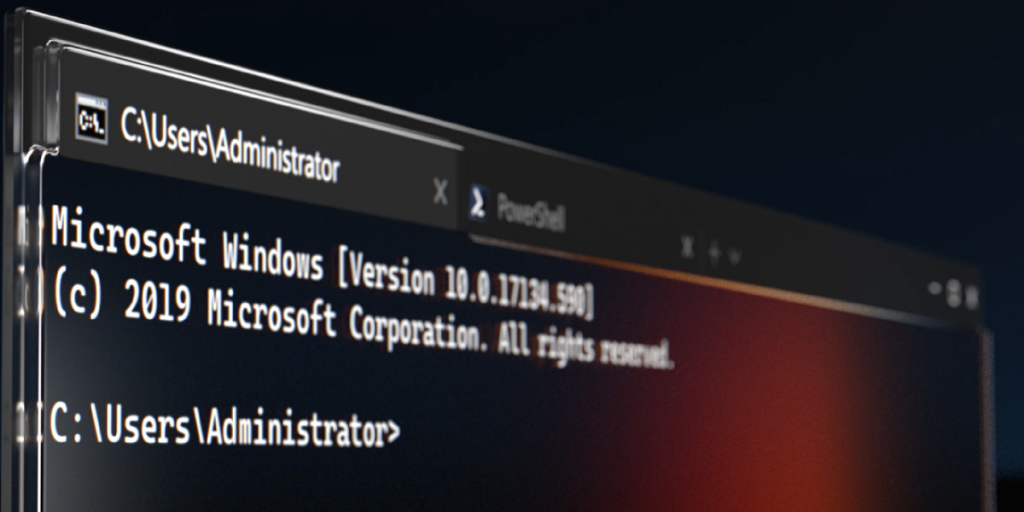
Windows Terminal is one of the best default terminal upgrades for Windows users who need to work across PowerShell, Command Prompt, and WSL without juggling a pile of separate console windows. Microsoft's official Windows Terminal overview, install guide, settings documentation, command-palette guide, panes guide, tips and tricks page, command-line arguments page, and official GitHub release trail checked on April 17, 2026 show a product that is much more than a prettier console. Windows Terminal supports multiple tabs and panes, Unicode and UTF-8 text, a GPU accelerated text rendering engine, deep theming, explicit startup behavior, searchable actions through the command palette, scriptable launching through wt.exe, and profile-level customization for command lines, starting directories, fonts, images, and acrylic effects. What keeps Windows Terminal worth installing is that Microsoft treats it like a real shell workspace. The install guide clearly explains the difference between Store installs with automatic updates and GitHub builds without automatic updates, the panes guide documents split layouts and read-only protection, the startup guide covers defaultProfile and persistedWindowLayout behavior, and the tips page surfaces distinctive workflow features such as Quake mode and retro CRT styling. The latest public GitHub release API also showed Windows Terminal v1.24.10921.0 published on April 3, 2026, which confirms the project is still actively maintained. That makes Windows Terminal strongest for Windows developers, administrators, and power users who regularly move between multiple shells and want one configurable place to manage them. It is a weaker fit for users who only open one occasional console window and do not care about panes, startup layouts, or scripted terminal control.

The current English page for Windows Terminal is still too thin for what Microsoft’s official materials now show. The main overview checked on April 17, 2026 makes the positioning clear: Windows Terminal is meant to be a multi-shell Windows workspace for Command Prompt, PowerShell, and bash through WSL, not merely a prettier shell host. That difference matters because the real value is coordination across tools, not only visual polish.

Annotated reference image based on the official Windows Terminal overview highlighting multi-shell tabs panes and GPU text rendering
The overview matters because Windows Terminal is strongest as a configurable multi-shell console workspace, not as a cosmetic console skin.

The install page is also more useful than many terminal download pages. Microsoft recommends the Microsoft Store path for stable automatic updates, notes that builds can be installed from GitHub if Store access is unavailable, and explicitly says GitHub installs do not automatically update. The same page also points users toward winget, Chocolatey, and Scoop. That helps users choose an install path based on maintenance style, not just on download convenience.

Annotated reference image based on the official install guide highlighting Store GitHub and package manager install paths
The install guide matters because the origin of a Windows Terminal install affects how updates are handled afterward.

The public maintenance trail is just as important. The official latest release API for the Microsoft terminal repository showed Windows Terminal v1.24.10921.0 as the latest release, published on April 3, 2026. That visible release line matters because terminal software often becomes part of daily infrastructure work and benefits from a current, transparent maintenance history.

Annotated reference image based on the official GitHub release trail highlighting the current Windows Terminal release line
The release trail matters because a terminal recommendation is stronger when the current maintenance line is explicit and recent.

The panes guide shows one of the clearest reasons Windows Terminal is more valuable than opening a handful of separate console windows. Microsoft documents the splitPane action with horizontal, vertical, and auto behavior, where auto selects the squarest layout. The same guide also documents read-only mode for a pane, which is a surprisingly practical safety feature in long sessions.

Annotated reference image based on the official panes guide highlighting split layouts auto sizing and read-only mode
The panes guide matters because split layouts are one of the most practical reasons to keep Windows Terminal open all day.

The command palette is another sign that Microsoft expects Windows Terminal to scale with customization. The official guide says Ctrl+Shift+P opens the palette and also documents a command line mode for entering wt commands directly. That makes the app easier to learn and easier to keep using once the number of actions grows beyond a few remembered shortcuts.

Annotated reference image based on the official command palette guide showing Ctrl+Shift+P and command line mode
The command palette matters because discoverable actions keep a heavily customized terminal from becoming hard to operate.

The startup settings show that Windows Terminal is meant to reopen into a deliberate workflow, not just a blank default shell. Microsoft documents defaultProfile for deciding what opens by default, firstWindowPreference for choosing between a default profile and a persisted layout, and additional startup behavior such as launching on machine startup. That is exactly the sort of control power users need when the terminal is part of the operating environment rather than a temporary tool.

Annotated reference image based on the official startup settings guide highlighting default profiles persisted layouts and startup behavior
The startup guide matters because terminals become far more useful when they reopen into the right working shape automatically.

The wt.exe command-line guide reinforces that automation focus. Microsoft documents the wt execution alias and commands such as new-tab, split-pane, and focus-tab. That means Windows Terminal is not only a UI destination. It can also be launched and shaped from scripts, shortcuts, and other command-line tools.

Annotated reference image based on the official wt.exe arguments guide highlighting scripted terminal control with new-tab split-pane and focus-tab
The wt.exe guide matters because Windows Terminal becomes much more repeatable when windows and tabs can be opened from scripts and commands.

The appearance settings are more useful than mere decoration. Microsoft documents profile-level options such as font face, background images, icons, and acrylic transparency through useAcrylic. In practice, that makes it easier to differentiate shells and reduce mistakes across environments instead of letting every tab look nearly identical.

Annotated reference image based on the official appearance settings guide highlighting fonts backgrounds icons and acrylic transparency
The appearance guide matters because visual differentiation is one of the simplest ways to make multi-profile terminal work safer.

The tips page is where Windows Terminal starts to feel distinct rather than merely configurable. Microsoft documents Quake mode, where a special _quake window snaps to the top half of the monitor, and it also describes a retro CRT-style effect that can be paired with acrylic transparency and tab coloring. Those details are not the core reason to install the app, but they do show how much workflow and interface thought has gone into the project.

Annotated reference image based on the official tips page highlighting Quake mode and retro terminal effects
The tips page matters because it surfaces some of the workflow ideas and visual behaviors users might never discover on their own.

Finally, the actions system explains why Windows Terminal customization feels so coherent. Microsoft says actions are added to the command palette, and the guide documents how command definitions and key bindings are structured in settings.json. That means the app’s deeper power comes from explicit, reusable actions instead of from scattered one-off toggles hidden in menus.

Annotated reference image based on the official actions guide highlighting settings.json command definitions and key bindings
The actions guide matters because Windows Terminal’s deeper power comes from explicit configurable actions that users can bind and reuse.

Our grounded judgment is that Windows Terminal is most worth installing for Windows developers, administrators, and power users who work across several shells and want tabs, panes, profile control, startup layouts, and scripted launching in one place. It is less important for someone who only opens an occasional single-shell window and does not care about workspace structure. Windows Terminal stays valuable because it solves the daily ergonomics of Windows shell work, not because it simply looks newer than Command Prompt.


Setup / Usage Guide

Installation steps, usage guidance, and common notes are maintained here.

The best way to evaluate Windows Terminal is to treat it as a shell workspace for Windows rather than as a prettier replacement for one console. Microsoft's official documentation checked on April 17, 2026 shows that the strongest first setup comes from installing it through the right channel, then configuring panes, profiles, startup behavior, and the command palette around your real workflow.

  1. Start from the official overview and install pages on Microsoft Learn so the feature model and install tradeoffs come from first-party documentation instead of from reposted tutorials.
  2. Pick the installation path deliberately. The Microsoft Store path is the easiest choice for automatic updates, while GitHub builds are useful when Store access is unavailable but require more manual maintenance. If you already manage tools from the command line, winget is often the cleanest middle ground.
  3. Open Windows Terminal with the shells you actually use. Microsoft positions it around Command Prompt, PowerShell, and WSL, so the product is easiest to judge once at least two of those are in real use.
  4. Set the defaultProfile early so opening a new tab lands in the shell you use most often. This prevents the terminal from feeling more complicated than it needs to be on first use.
  5. Test one split layout with panes right away. Use a vertical or horizontal split, then decide whether seeing multiple shells at once actually fits your work better than separate windows.
  6. Open the command palette with Ctrl+Shift+P once during setup. This is the fastest way to make Windows Terminal feel learnable instead of burying everything behind shortcuts you have not memorized yet.
  7. Try one wt.exe command from a shell or a shortcut. A small example with new-tab or split-pane is enough to show whether scripted launching will save you time later.
  8. Configure one profile visually so it is easy to distinguish from the others. A different font, color scheme, background, or acrylic treatment can prevent mistakes when switching between production, local, and experimental shells.
  9. If you open the terminal constantly, adjust the startup behavior next. The official startup settings let you lean on persisted layouts, default profiles, and launch behavior so the terminal reopens into a useful shape.
  10. Explore Quake mode if you prefer a summonable terminal that stays near the top of the screen. It is one of the clearest examples of Windows Terminal solving a workflow problem rather than merely exposing a shell.
  11. Use the actions system only after the basic setup is stable. Once you know what you repeat often, then it becomes worth binding commands in settings.json and adding them to the palette.
  12. Finish the evaluation with one honest question: do you actually work across multiple Windows shells often enough to benefit from tabs, panes, and startup layouts, or do you only need a simple one-off console window?

A practical Windows Terminal setup usually means installing it through the maintenance path you prefer, setting the default profile, testing panes and the command palette immediately, then gradually adding profile styling and startup behavior around your real shells. That order makes the app easier to judge fairly and much easier to keep.

Related Software

Keep exploring similar software and related tools.