Overview

This section highlights the core features, use cases, and supporting notes.

AnythingLLM is best understood as a local AI workspace for documents, private chat, and agent-style workflows rather than as another generic chatbot tab. It is especially useful for users who want a private document AI assistant, a desktop RAG app, or a self-hosted-friendly environment where models, files, and tools can stay close to the machine or server they control. Its strongest differentiators are local-by-default desktop behavior, no-account setup, document workspaces, AI Agents, authenticated scraping, and MCP compatibility, but it is still a better fit for builders and power users than for people who only want the simplest cloud chat experience.

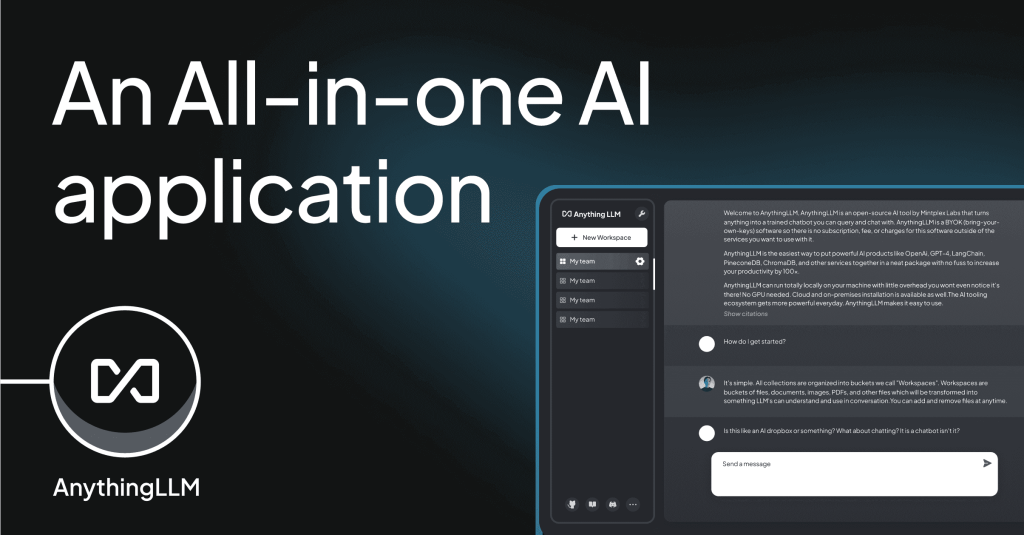
AnythingLLM calls itself an all-in-one AI application, and that description is more accurate than most AI product slogans. The official homepage ties together documents, agents, local models, and offline use in one desktop application. That matters because the product is not just trying to be another place to type prompts. It is trying to become a local AI workspace for documents and recurring knowledge work. For people comparing a private document AI assistant, a desktop RAG app, or an AI tool that does not force everything into a cloud-first workflow, this is the right way to think about it.


Annotated screenshot of the official AnythingLLM homepage showing the all-in-one AI application positioning and the locally offline workflow message
This homepage screenshot matters because it shows the product boundary clearly: AnythingLLM is positioning itself as one desktop layer for documents, agents, and local AI instead of a thin chat wrapper. Click the image to open the full-size screenshot.

The desktop page makes the practical value even clearer. The official copy emphasizes privacy, local-by-default behavior, and no account needed. That combination is a major differentiator. A lot of AI tools talk about privacy while still pulling users into a managed web service immediately. AnythingLLM starts from the opposite direction. Models, documents, chats, and storage can stay on the machine by default, which is why it is appealing to developers, researchers, analysts, and operators who want more control over where their data lives. If your real goal is a local AI workspace for documents, the desktop-first design matters more than a flashy homepage promise.


Annotated screenshot of the official AnythingLLM desktop download page highlighting privacy, local-by-default use, and no-account setup
The desktop screenshot deserves a place here because it answers a key fit question fast: whether AnythingLLM is really local-first or only claims to be. The page shows that desktop and privacy are central, not secondary. Click the image to open the full-size screenshot.

Documents are also central to the product, not a side feature. The official site talks about PDFs, Word files, CSVs, codebases, and even online imports. That is what makes AnythingLLM more interesting than a basic desktop chatbot. It is designed to become a working layer around your files, so a private document AI assistant or desktop retrieval workflow is a more natural use case than casual open-ended chat. Users who deal with internal notes, technical references, research files, or private project archives are far more likely to benefit than users who only need an occasional AI reply.

The AI Agents documentation shows another important difference. Agents in AnythingLLM operate inside the workspace where they are invoked, and the docs explicitly describe using @agent to inspect documents, summarize files, search the web, create charts, and save outputs. That is useful because the agent is not floating without context. It is attached to the same working area where your documents and task context already live. For people looking for local AI agents for documents or a more practical agent workflow than isolated demos, this is one of the product’s strongest angles.


Annotated screenshot of the official AnythingLLM AI Agents documentation showing the workspace-based @agent workflow
This AI Agents screenshot is useful because it shows that agent mode is tied to a workspace and a simple @agent entry point, which makes the feature easier to judge as part of real document work. Click the image to open the full-size screenshot.

The Authenticated Scraping feature is unusually practical for private or internal workflows. The official docs state that credentials and session data are stored locally on your machine, and the feature is meant for gated online content that still matters to your workflow. That is a concrete advantage over generic web-search claims. If you need an authenticated scraping LLM workflow for a company portal, an internal tool, or another private web surface you can legitimately access, this feature is far more relevant than ordinary public search alone. It also sets a trust boundary clearly: the value comes from local session handling, so it should be used on a machine you actually trust.


Annotated screenshot of the official AnythingLLM Authenticated Scraping documentation highlighting local credential storage for gated content workflows
The authenticated scraping screenshot matters because it clarifies both the opportunity and the safety boundary: AnythingLLM is trying to help with gated content, but it keeps sessions local to your machine. Click the image to open the full-size screenshot.

For advanced users, AnythingLLM MCP desktop support extends the product beyond simple chat and file retrieval. The docs are refreshingly explicit: desktop supports tools loading via MCP servers, but not resources, prompts, or sampling. That limitation is actually useful to know up front. It keeps expectations grounded while still showing a real path for connecting external tools into an agent workflow. If you are comparing AnythingLLM MCP desktop support against ordinary chat apps, this is one of the most meaningful technical differentiators. If you are not technical, it is also a reminder that MCP is an optional layer, not the first thing to touch.


Annotated screenshot of the official AnythingLLM MCP on Desktop documentation showing MCP tool loading support and its current scope
This MCP screenshot earns its place because it shows a real capability boundary. The page explains that desktop supports MCP tools, but not every MCP surface, which is exactly the kind of detail technical users need early. Click the image to open the full-size screenshot.

The Windows installation docs add one more grounded signal that many users would otherwise miss. The official guide explicitly warns against installing the desktop app for all users and recommends a Current User install instead. It also notes built-in local LLM support through Ollama, which lowers the barrier for first-time local testing. These are the kinds of practical details that matter more than big feature lists when you actually want the software to work on day one. For Windows users, this is part of why AnythingLLM feels more like a serious local tool than a vague AI shell.


Annotated screenshot of the official AnythingLLM Windows installation guide showing the Current User installation warning
The Windows installation screenshot is practical because it highlights the setup detail most likely to prevent avoidable trouble later: install for the current user instead of forcing an all-users setup. Click the image to open the full-size screenshot.

Our grounded take is that AnythingLLM is strongest for people who want documents, private context, and agent workflows in one place without immediately giving up local control. It is especially good for builders, technical operators, private research workflows, and anyone exploring self-hosted or local-first AI tools. It is weaker for users who only want the easiest possible beginner chat experience or for teams that really need polished multi-user collaboration on day one. In those team cases, the official cloud or self-hosted path may fit better than stretching the desktop app too far. But if your real question is whether a private document AI assistant can live on your machine and still grow into something more capable, AnythingLLM is one of the more interesting answers available right now.

Setup / Usage Guide

Installation steps, usage guidance, and common notes are maintained here.

The fastest way to evaluate AnythingLLM is to treat it like a private document workflow tool first and an advanced agent platform second. Start with one real document task, get the local setup stable, then add the more technical layers only if they actually help.

  1. Open the official AnythingLLM site from the website button on this page, then go straight to the desktop download page if your goal is private local use. The desktop path is the clearest way to judge the product's real strengths.
  2. Choose the correct Windows package before downloading. Use the x64 build for standard Windows PCs and the ARM build only if your machine is actually running Windows on ARM.
  3. Follow the official Windows installation guidance carefully. The docs explicitly recommend installing for the current user instead of for all users, and ignoring that advice can create avoidable setup issues.
  4. Launch the app and decide how you want to start with models. For a low-friction first test, the built-in local LLM path through Ollama is the easiest starting point. If you already have a preferred local or cloud model provider, you can connect that later.
  5. Create one workspace around a real use case instead of mixing everything together. Good first tests include internal documentation Q&A, research reading, codebase reference notes, project operations, or a private knowledge folder you actually revisit.
  6. Upload a small, coherent set of files first. PDFs, Word files, CSVs, or code-related material all fit the product well, but a focused document set will reveal value faster than dumping an entire messy archive into the workspace.
  7. Run a real document test before touching advanced settings. Ask targeted questions, request short summaries, compare two files, or check whether AnythingLLM can help you find the exact passages you normally search for manually.
  8. After the basic document flow works, test @agent inside the same workspace. Start with simple tasks such as listing visible files, summarizing one document, or searching for something relevant on the web. This shows whether the agent layer actually improves the workflow or just adds noise.
  9. If your work depends on private web systems you are allowed to access, read the Authenticated Scraping docs and test that feature carefully on a trusted machine. Treat it as a specialized workflow tool, not as a shortcut for casual browsing.
  10. If you are technical, explore AnythingLLM MCP desktop support only after the core workspace is stable. The docs make it clear that desktop currently loads MCP tools, not every MCP surface, so keep expectations precise and add servers one by one.
  11. If you need multiple users, shared administration, or cleaner tenant separation, do not force the desktop app to solve a team problem by itself. Compare the official cloud or self-hosted options instead, because that is where the multi-user path is meant to live.
  12. After a few real sessions, make a strict keep-or-skip decision. Keep AnythingLLM if local privacy, document workflows, and optional agent tooling clearly save time in your daily work. Skip it if you still want a simpler chat app, if you do not need document context, or if the extra control is not worth the added setup and maintenance.

A practical evaluation order works well for most users: desktop install first, one workspace second, document testing third, @agent fourth, authenticated scraping fifth if needed, and MCP last for technical expansion. That order shows quickly whether AnythingLLM belongs in your actual workflow instead of only sounding powerful on paper.

Related Software

Keep exploring similar software and related tools.