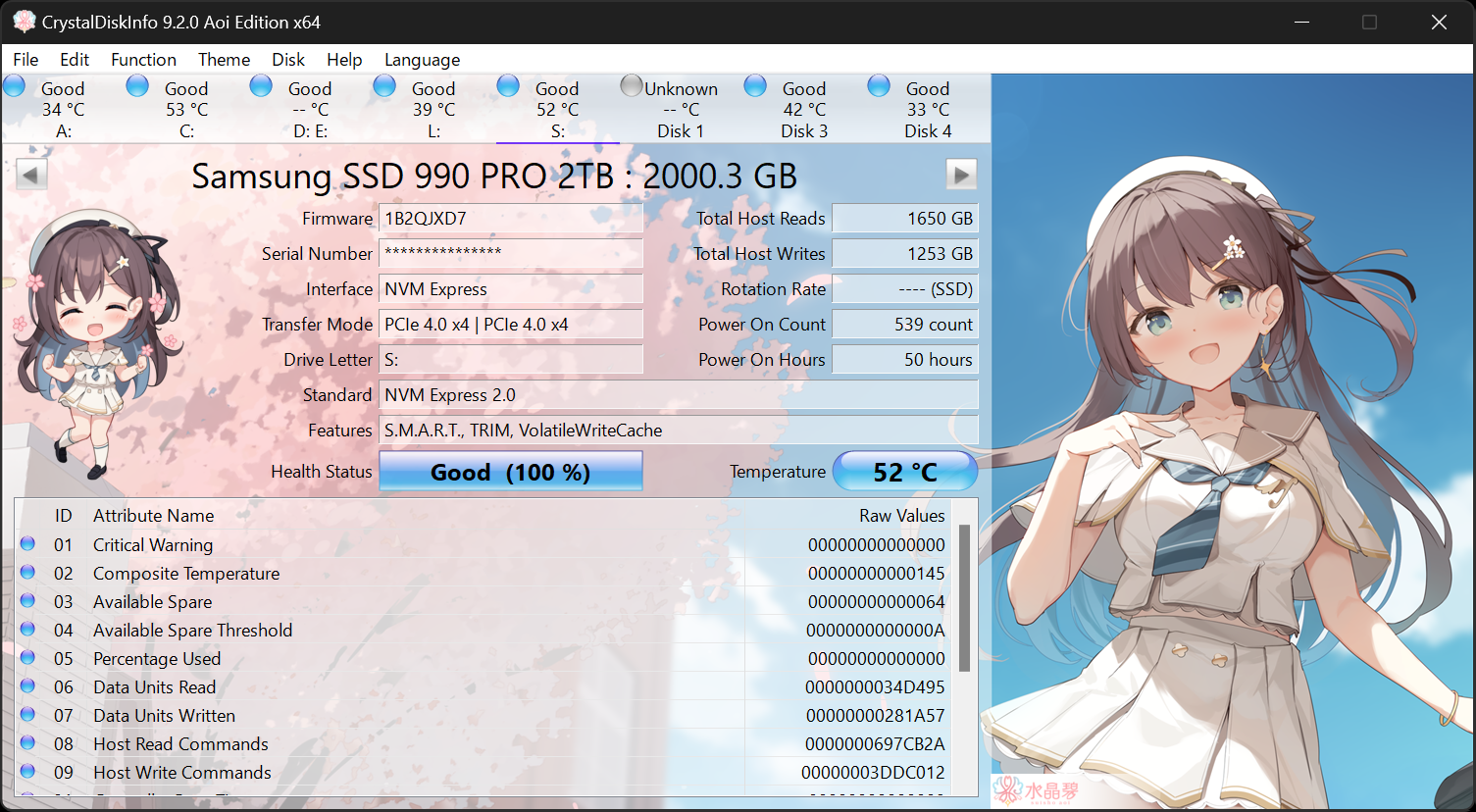
CrystalDiskInfo is useful because storage problems often start quietly. A drive may still open files and boot Windows while temperature, SMART alerts, or health indicators are already pointing to trouble. Having one lightweight tool that makes those signals visible can help users act before the problem turns into data loss or urgent downtime.
It is especially suitable for people who maintain Windows PCs, upgrade storage, monitor older hard drives, or simply want a clearer picture of SSD and HDD condition without jumping into heavy benchmark suites first. If your concern is drive health rather than raw performance, CrystalDiskInfo is a more direct fit than a speed test.
What makes it worth keeping is that it puts key storage condition information into a form ordinary users can actually notice. Temperature, drive identity, firmware details, and health-related indicators become easier to review during routine checks or after a machine starts behaving strangely.
The tradeoff is that health indicators still need interpretation. A warning, temperature jump, or attribute change does not automatically tell the full story of the drive’s future, and the tool should be paired with good backup habits rather than treated as a replacement for them. Monitoring is only useful if it changes what you do next.
My recommendation is to use CrystalDiskInfo as a calm Windows check for storage condition, especially on machines that matter or drives that have been in service for a long time. Review it periodically, compare changes over time, and treat unusual signs as a reason to back up and investigate sooner, not later.