Overview

This section highlights the core features, use cases, and supporting notes.

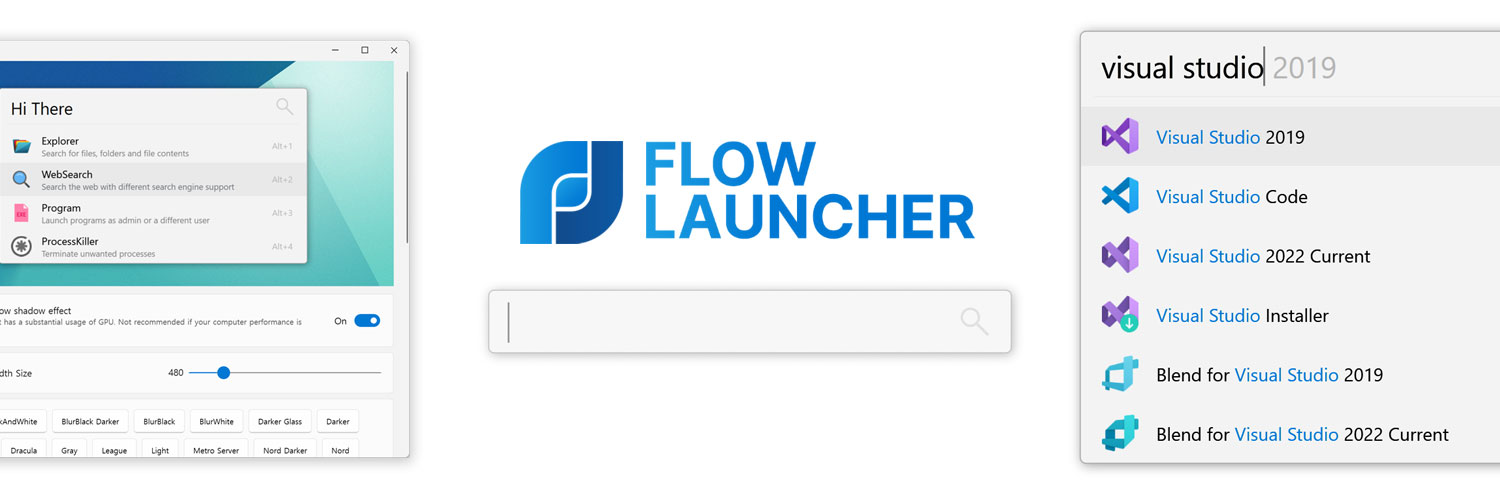
Flow Launcher is a Windows productivity launcher for users who want one quick keyboard entry point for apps, files, commands, web search, and plugins. It is especially useful for keyboard-first users, developers, and power users who prefer launching actions instead of hunting through menus. Its real value is speed and extensibility, while the main tradeoff is that it rewards users who actually commit to shortcut-driven habits.

Flow Launcher is built around a simple idea: the fastest way to reach things on Windows is often not through menus at all, but through one launcher prompt that can search, trigger, and route tasks quickly. That puts it in the same family as keyboard-first productivity tools that save time by reducing interface travel.

It fits developers, power users, operators, and anyone who opens many apps, files, commands, or web actions each day. If you like the idea of pressing one shortcut and typing your way to the next action, Flow Launcher is a strong fit.

What makes Flow Launcher worth keeping is the combination of speed and plugins. The launcher can become much more than an app opener once it starts handling file access, web search, system commands, and workflow-specific shortcuts from the same prompt.

The tradeoff is that a launcher only becomes powerful when the user actually changes habits. If you keep reaching for the mouse and old navigation patterns every time, Flow Launcher will never feel as valuable as it really can be.

My recommendation is to install Flow Launcher if you want Windows to feel faster through keyboard-driven access. It is especially worthwhile for users who open many tools a day and like the idea of extending the launcher into a personal command surface.


Setup / Usage Guide

Installation steps, usage guidance, and common notes are maintained here.

1. Download Flow Launcher from the official website and install it on your Windows system from the official source.

2. Launch the app and learn its main hotkey first. A launcher only becomes useful when opening it is easier than reaching for the Start menu.

3. Test a few basic actions right away such as opening an app, running a web search, or finding a command. This helps you understand the core speed advantage before you explore plugins.

4. Open the settings and confirm startup behavior, hotkey choice, and general result appearance. Small adjustments here can make the launcher much more natural in daily use.

5. Try one real workflow such as opening your editor, terminal, and browser through Flow Launcher instead of the usual Windows path. This is the fastest way to judge whether it saves time for you.

6. Explore plugins only after the base launcher habit feels stable. Plugins are a big part of Flow Launcher's value, but they are more useful once the core shortcut is already automatic.

7. If file search quality matters to you, compare the available file-search approach in your setup and decide whether you need deeper indexing support for your routine.

8. Keep the launcher focused on actions you repeat often. It is better to have a small number of high-value habits than a huge list of features you never remember to use.

9. Avoid turning the launcher into a cluttered experiment immediately. A clean first setup makes it easier to understand which plugins or results actually help.

10. Keep Flow Launcher updated from the official project and refine it around your real habits over time. Launchers become powerful through consistency, not through one dramatic setup session.

Related Software

Keep exploring similar software and related tools.