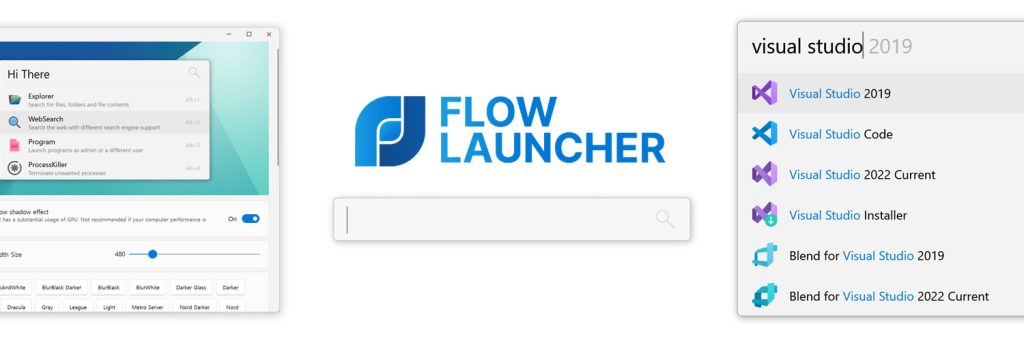
Flow Launcher is best judged as a keyboard-first control layer for Windows rather than as a cosmetic search bar. The official homepage calls it a Quick File Search & App Launcher for Windows, and that wording is accurate. Its main job is to help you open programs, files, folders, commands, and web results without stepping through Start menus or desktop icons. For readers searching for a Windows app launcher, a quick file search tool for Windows, or a launcher with plugin support, the practical appeal is speed plus reduced friction in daily navigation.

The homepage also makes it clear that retention comes from flexibility, not only from the first search box. Flow Launcher highlights custom themes, animation, sound, and a community plugin model that supports C#, F#, Python, JavaScript, and TypeScript. That matters because launchers only stay useful when they can adapt to the way people actually work. If you want a minimal launcher, Flow can do that. If you want a personalized Windows launcher with themes and expandable actions, the official materials suggest it can keep growing with your workflow instead of staying static.

The official plugin directory is where Flow Launcher becomes more than a launcher. The plugin page shows utilities for PATH management, AI queries, bookmarks, browser history, Docker tasks, calculators, search shortcuts, and many other workflows. This does not mean every plugin should be installed. The real takeaway is that Flow Launcher can be shaped toward development, research, web browsing, note-taking, or system tasks depending on what you actually do every day. For people looking for a Windows launcher with plugin support or a customizable keyboard launcher for Windows, this ecosystem is the main reason Flow stands out.

The installation guide is more practical than a typical landing page. The official docs say Flow Launcher can be installed through Winget, Scoop, Chocolatey, or the installer from the main website, and they also warn that Microsoft Defender SmartScreen may show a warning when you run the installer. That is exactly the kind of detail new users need. The docs explain that this does not automatically mean the app is unsafe, but they still tell users to verify that the download came from the official site or official repository. This is a good sign of grounded documentation rather than shallow marketing copy.

The settings documentation also reveals the right first-use habit: type settings into Flow and go straight into configuration. The official docs show three entry paths into settings and explain that the settings screen gives access to Flow configuration, plugin controls, and the Plugin Store. That matters because the software gets better once it is adjusted to your actual hotkeys, plugin priorities, and preferred behavior. A reader searching for how to configure Flow Launcher or how to customize a Windows search launcher should start here rather than treating the default setup as the final setup.

One of the strongest documented workflows is the Explorer plugin. The official Explorer plugin docs explain that Flow merged its older Explorer and Everything plugins, and that users can decide which search engine handles which kind of search. The docs also say Flow can automatically download and install Everything if you choose it as the search index engine and Everything is not already running. That is a strong practical advantage for file-heavy Windows users. It means Flow Launcher can sit on top of Windows Search or Everything and become a faster front door for file and folder retrieval rather than forcing you into only one search backend.

Our grounded view is that Flow Launcher is worth keeping if you prefer keyboard-driven Windows work, launch the same tools repeatedly, and want one search surface for apps, files, commands, and plugins. It is less convincing for users who dislike setup, never use hotkeys, or want a purely fixed launcher with no tuning. In practice, Flow Launcher is strongest as a customizable Windows app launcher and quick file search tool for people willing to spend a little time shaping the workflow to fit how they already work.