Overview

This section highlights the core features, use cases, and supporting notes.

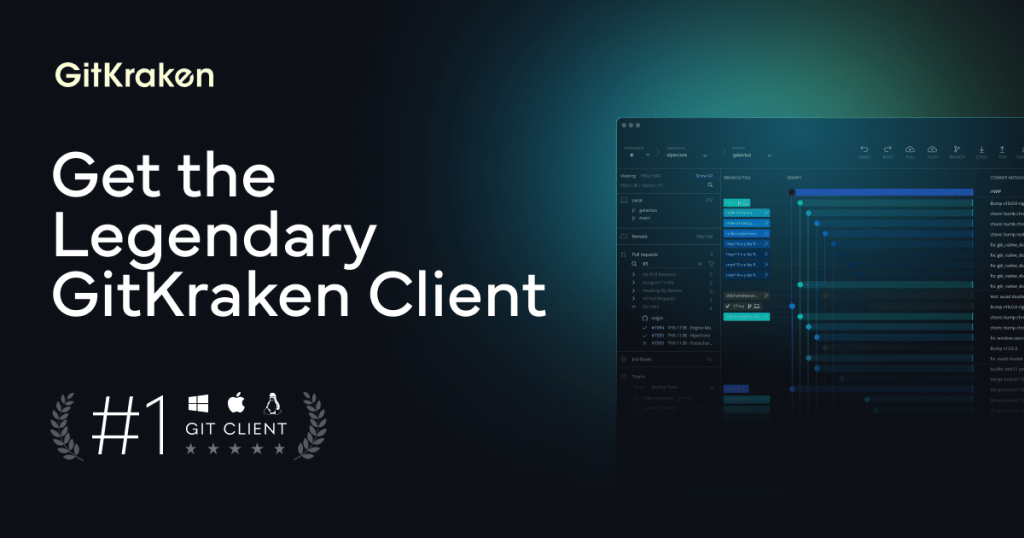
GitKraken is still worth recommending when it is judged as a visual Git desktop client for repository history, pull-request follow-through, multi-repo organization, and merge-conflict handling instead of as only a prettier shell around basic Git commands. The official materials checked on April 21, 2026 present GitKraken Desktop through a clear Windows download path, a visual commit graph, Launchpad for issues and pull requests, Workspaces for multi-repo context, a visual 3-way merge tool, enterprise-oriented security controls, a public help center, current release notes, and a visible product roadmap. That combination matters because many developers do not struggle with Git because commands are unavailable; they struggle because repository context, merge state, and review work become hard to see at the right moment. GitKraken is strongest for developers and teams who want Git work to stay legible across branches, repositories, pull requests, and review queues without forcing every action through raw terminal memory. It is weaker for readers who prefer a purely CLI workflow or who only need the smallest possible local Git wrapper, but our grounded judgment is that GitKraken still earns its place when the real need is visual Git clarity plus day-to-day team workflow support.

The current English page for GitKraken needs a fuller rewrite because the official materials checked on April 21, 2026 show a tool with a much clearer identity than a generic Git client label suggests. GitKraken is most useful when it is judged as a visual desktop environment for real repository work, not simply as a way to avoid typing Git commands in a terminal.

Annotated reference image based on the official GitKraken Desktop page highlighting the visual Git client positioning
The main desktop page matters because it explains GitKraken through visual Git workflow value instead of generic developer-tool language.

The official GitKraken Desktop page is the best starting point because it still frames the product as a Git GUI plus terminal for Windows, Mac, and Linux. That matters because the core promise is not only convenience. The stronger promise is that repository history, branch structure, and team workflow can stay visible enough to reduce mistakes and hesitation.

Annotated reference image based on the official GitKraken download page highlighting the first-party Windows install route
The download page matters because GitKraken is easier to adopt when the official desktop install path is immediate and trustworthy.

The download page also matters more than it might seem. A desktop Git client should be simple to obtain from a clear first-party route, and the current GitKraken download page still keeps that path visible. For readers evaluating software quality, a clean official install route is part of whether the tool feels maintainable before the first repository is even opened.

Annotated reference image based on the official GitKraken commit graph page highlighting branch and merge visibility
The commit graph page matters because visual repository history is one of GitKraken’s strongest real advantages over a bare terminal workflow.

The commit graph page explains one of the strongest reasons to keep GitKraken installed. Git itself is powerful, but repository history becomes cognitively expensive once merges, feature branches, and parallel work start stacking up. GitKraken’s official materials still present the visual commit graph as a way to make that history easier to understand quickly, and that is exactly where a Git GUI can justify its place.

Annotated reference image based on the official GitKraken Launchpad page highlighting pull requests issues and tasks across repos
The Launchpad page matters because GitKraken becomes more valuable when repository work and follow-up work stop living in separate tabs.

The Launchpad page pushes GitKraken beyond simple commit browsing. The official page still presents it as a unified dashboard for pull requests, issues, and tasks across GitHub, GitLab, Bitbucket, and Jira. That matters because many developers lose time switching between repository windows and issue trackers. GitKraken looks strongest when it reduces that fragmentation rather than only repainting Git history in better colors.

Annotated reference image based on the official GitKraken Workspaces page highlighting multi-repository organization
The Workspaces page matters because GitKraken is easier to keep when it can manage repository groups rather than only one repo window at a time.

The official Workspaces page is equally practical because modern development work often spans several repositories. GitKraken still positions Workspaces as a way to group related repositories, preserve context, and perform bulk actions. That is useful for readers working in service-based architectures or any environment where one product lives across many repos instead of one monolithic codebase.

Annotated reference image based on the official GitKraken merge tool page highlighting the visual three-way editor
The merge tool page matters because a Git client proves its worth when repository work turns messy rather than when everything already goes smoothly.

The merge conflict page shows another real decision point. Merge conflicts are one of the moments where Git becomes intimidating even for people who understand the basics. GitKraken’s official materials still highlight a visual three-way merge editor that helps users compare incoming, base, and current changes side by side. That is not cosmetic value. That is a direct reduction in fear during one of the most failure-prone Git workflows.

Annotated reference image based on the official GitKraken security controls page highlighting policy and audit concerns
The security page matters because GitKraken has to be judged as a team tool as well as a personal convenience app.

The security controls page matters because GitKraken is clearly not aimed only at solo experimentation. The official security page still talks about enforcing policies, managing access, and maintaining compliance. Even readers who never need enterprise governance can take this as a signal that GitKraken is being built for team workflows with real stakes, not only for casual local experimentation.

Annotated reference image based on the official GitKraken Help Center highlighting documentation and onboarding support
The help center matters because GitKraken is easier to adopt when first-party guidance stays visible and organized.

The Help Center reinforces that maturity. Git software becomes much more practical when onboarding, training, and troubleshooting guidance stay easy to find. The official GitKraken Help Center still organizes support and documentation in one place, which matters for individual users learning the tool and for teams trying to roll it out without turning every question into an internal support ticket.

Annotated reference image based on the official GitKraken release notes highlighting ongoing maintenance visibility
The release notes matter because GitKraken should be judged as maintained working software, not just as a one-time download.

The release notes page is also worth surfacing because Git clients sit directly inside daily engineering work. The official GitKraken Desktop release notes still provide a visible maintenance trail, which is important for users deciding whether the tool remains actively improved and safe to keep in regular workflow.

Annotated reference image based on the official GitKraken roadmap highlighting visible product direction
The roadmap matters because visible product direction adds confidence for teams who expect Git workflows to evolve over time.

The public roadmap adds one last layer of trust. A visible roadmap does not guarantee perfect execution, but it does show that GitKraken is still being developed with an openly signaled direction. For teams deciding whether to standardize around a desktop Git client, that kind of visibility is more meaningful than vague claims about innovation.

Our grounded judgment is that GitKraken is strongest for developers and teams who want repository work to stay visible across commit history, review flow, merge resolution, and multi-repo organization. It is weaker for readers who already prefer a purely terminal-first workflow and do not want another layer in front of Git. Judged on the official materials available on April 21, 2026, GitKraken still deserves to be recommended as a practical visual Git workbench, not as a superficial shortcut tool.


Setup / Usage Guide

Installation steps, usage guidance, and common notes are maintained here.

The best way to start with GitKraken is to treat it as a visual Git workbench that should make repository state easier to understand, not as a substitute for learning Git concepts altogether. The official materials checked on April 21, 2026 make the product's strengths clear: start from the official download route, open a real repository, use the commit graph to understand branch movement, bring pull requests and issues into view when needed, and use the merge tools and workspaces features only after the basics already feel comfortable.

  1. Start from the official GitKraken Desktop page at https://www.gitkraken.com/git-client so you understand the product in the right way before installing it. The core value is visual Git clarity, not magic automation.
  2. Use the official download page at https://www.gitkraken.com/download for Windows installation. Avoid third-party packaging portals when the first-party route is already clear and current.
  3. After installation, open an existing repository that you already understand at least a little. Do not make your first GitKraken session a high-risk production repository with unresolved branch confusion.
  4. Spend a few minutes reading the commit graph before you click around aggressively. The graph is one of GitKraken's strongest advantages, and it is often the fastest way to understand where branches diverged and merged.
  5. Check how branches, remotes, and recent commits are presented. If the graph already helps you answer questions faster than command output alone, GitKraken may be a good long-term fit.
  6. If your work includes pull requests and issue tracking, review the official Launchpad explanation. This is useful when your Git work is spread across code hosting and project systems and you want less tab-switching.
  7. If you maintain several repositories for one product or service group, set up Workspaces rather than opening everything ad hoc. That keeps related repositories in one place and makes multi-repo work easier to revisit later.
  8. Do not wait for a stressful day to look at the merge tool for the first time. Open the official merge conflict page, understand the three-way view, and be ready before an actual conflict arrives.
  9. When you do hit a merge conflict, slow down and read the base, incoming, and current sections carefully. The value of a visual merge editor is that it reduces panic, but it still depends on deliberate review.
  10. If you work in a team with repository policies or compliance requirements, review the official security controls page before wider rollout. A Git client that looks pleasant also needs to fit the team's governance expectations.
  11. Use the official Help Center whenever a workflow or panel feels unclear. Git tools are easier to keep when first-party documentation stays nearby instead of being replaced by guesswork and forum fragments.
  12. Bookmark the release notes page if GitKraken becomes part of your daily routine. Update visibility matters more once a Git client becomes part of normal engineering work.
  13. Review the public roadmap with realistic expectations. It is useful for understanding direction, but you should still base current workflow decisions on what the installed product already does well today.
  14. After a week of real use, decide honestly whether GitKraken is helping you understand repository history, review flow, and merge state faster. If yes, keep it. If you still prefer the terminal for almost everything, let the product stay optional instead of forcing it into your workflow.
  15. Keep one practical standard: GitKraken should reduce uncertainty. If it becomes another interface layer you ignore, the fit is weak. If it makes branch history, pull requests, and merge decisions easier to understand, it has earned its place.

A practical GitKraken setup usually means downloading from the official desktop route, opening a familiar repository first, learning the commit graph before chasing advanced features, using Launchpad only when issues and pull requests really matter to your daily flow, grouping related repositories in Workspaces, preparing for merge conflicts before they become urgent, checking the Help Center and release notes when the client becomes part of normal work, and keeping the tool only if it truly makes Git state easier to understand. That is how GitKraken becomes useful instead of decorative.

Related Software

Keep exploring similar software and related tools.