Overview

This section highlights the core features, use cases, and supporting notes.

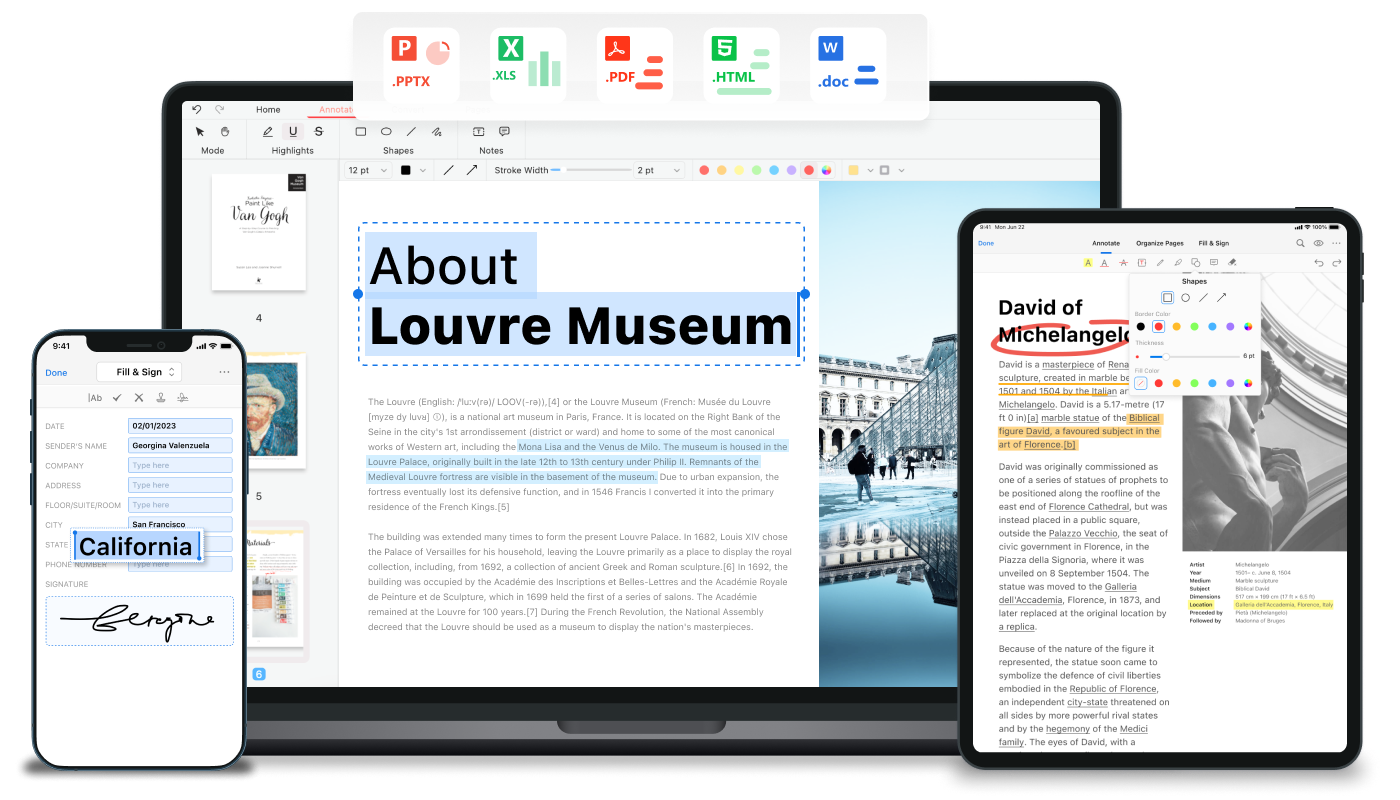
PDFgear is a Windows PDF utility for reading, editing, converting, and handling common document tasks without jumping among several separate tools. It is most useful for users who regularly work with PDF files and want a more complete everyday PDF workspace than a basic viewer provides.

PDFgear is useful because PDF work is rarely just reading one document. In normal office and personal workflows, PDFs often need annotation, rearrangement, conversion, extraction, or cleanup, and juggling multiple utilities for those tasks becomes inefficient quickly. A broader PDF tool can make those routine jobs much easier to manage.

It is most suitable for office users, students, document-heavy professionals, and anyone who regularly receives PDFs that need more than passive viewing. If your work includes forms, shared documents, converted files, or repeated PDF edits, a more capable utility can save time every week.

What makes PDFgear worth trying is convenience around common document tasks. Instead of forcing a separate workflow for every small PDF job, it aims to keep several of those functions in one Windows application. That makes it practical for users who value an everyday toolkit more than a highly specialized niche editor.

The tradeoff is that not every PDF task has the same level of complexity. A general-purpose PDF tool can cover a lot of ground, but very advanced publishing or document workflows may still need heavier software. The grounded expectation is to use PDFgear for the broad middle of normal PDF work, where speed and convenience matter most.


Setup / Usage Guide

Installation steps, usage guidance, and common notes are maintained here.

1. Open the official PDFgear site and download the current Windows build from the official source.

2. Install the app and begin with a few ordinary PDF files you already understand, such as a form, report, or reference document.

3. Test the reading and navigation experience first so you know whether it works well as an everyday PDF viewer on your machine.

4. Try one practical task, such as annotation, page rearrangement, or conversion, instead of exploring every feature at once.

5. Save a copy before making significant edits to an important document, especially if the file is work-related or difficult to replace.

6. If you often convert files, review output quality and naming carefully so converted documents stay organized and usable later.

7. Keep your document folders tidy, because PDF utilities are much easier to benefit from when the files themselves are not scattered across random locations.

8. Return to the official PDFgear site for updates and use the tool as a practical daily PDF workspace rather than expecting it to replace every advanced document platform.

Related Software

Keep exploring similar software and related tools.