Overview

This section highlights the core features, use cases, and supporting notes.

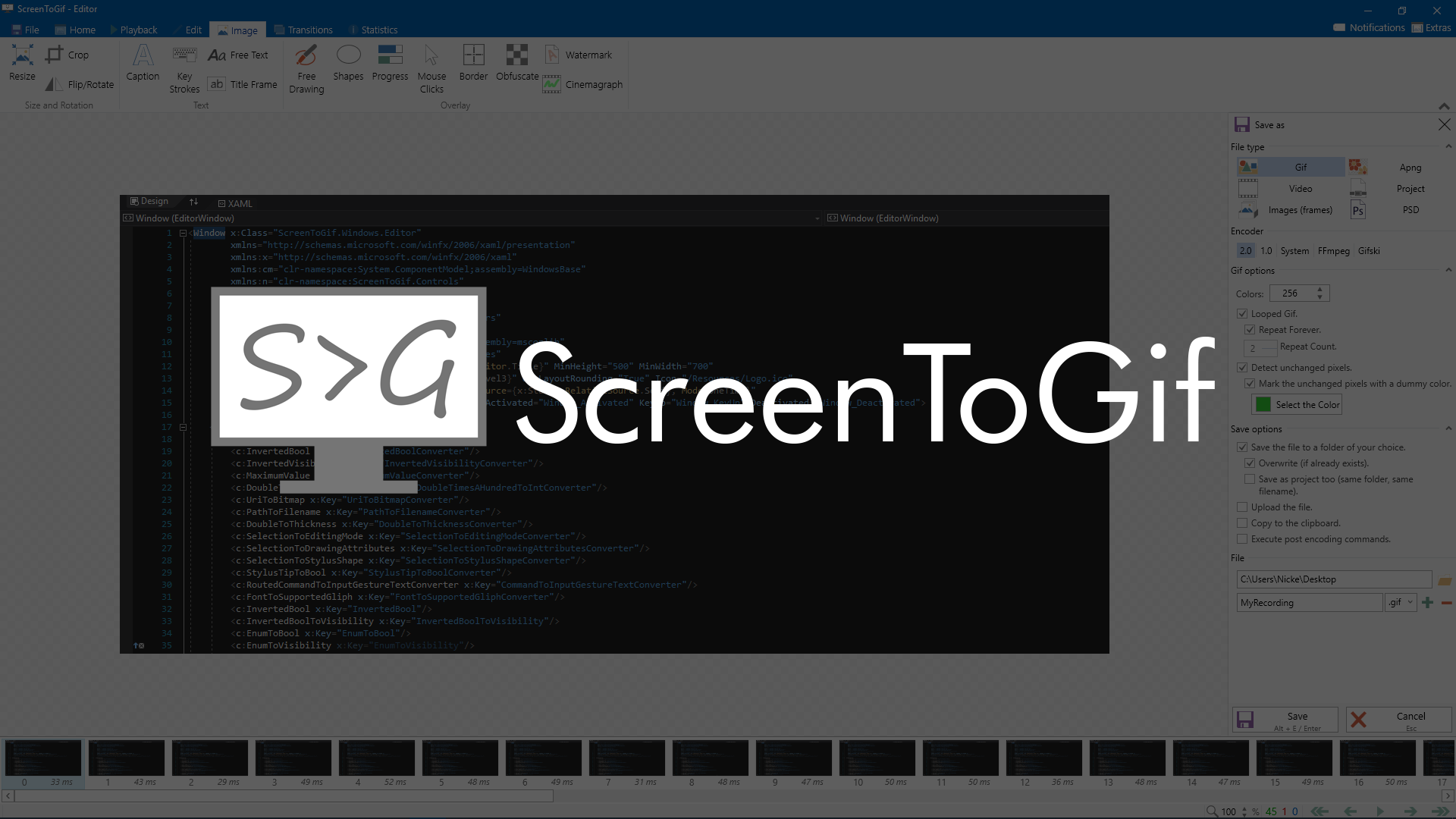
ScreenToGif is a screen recording and lightweight frame-editing tool for Windows users who need to make short GIFs, software demos, bug reports, or visual instructions from desktop activity. It is especially useful for tutorials, UI explanations, and quick shareable demonstrations. Its value comes from combining capture with practical editing, though users should keep recordings short and purposeful if they want exports to stay useful instead of bloated.

ScreenToGif is built for a very specific and very useful job: capturing a short piece of on-screen behavior and turning it into something other people can understand immediately. Static screenshots often fail to explain motion, hover states, timing, or small workflow steps, and full video is often more than the situation needs. That gap is where ScreenToGif becomes valuable.

It is especially suitable for support replies, bug reports, UI tutorials, documentation updates, and product communication where a short visual loop explains more clearly than a paragraph of text. If you regularly need to show how something behaves on screen, the tool can save a lot of back-and-forth.

What makes it worth keeping is that it does not stop at recording. Editing frames, trimming unnecessary moments, and controlling the final output are what turn a raw capture into something another person can actually use.

The tradeoff is that GIF-style communication becomes messy quickly when users record too much, leave dead time in the clip, or export oversized files. The tool works best when the message is short, deliberate, and easy to watch.

My recommendation is to use ScreenToGif when a moving visual explanation will save more time than text or screenshots alone. Keep the capture narrow, trim aggressively, and produce clips that solve one clear communication problem at a time.


Setup / Usage Guide

Installation steps, usage guidance, and common notes are maintained here.

1. Open the official ScreenToGif website and download the current Windows version from there. The official site is the safest place to get a recording utility you may use frequently for support or documentation work.

2. Launch the tool and choose a small recording area for your first test instead of capturing the entire desktop. Narrow capture windows are easier to manage and produce more useful results.

3. Record a very short action, such as opening a menu or completing one small UI step. This helps you understand the capture flow without creating a long file you immediately need to clean up.

4. Open the recording in the editor and trim obvious dead space at the beginning and end. Editing is where ScreenToGif starts to become much more valuable than a basic recorder.

5. Review the frames and remove anything confusing, repetitive, or unrelated to the main point. Shorter clips are usually easier for other people to understand.

6. Add only the annotations that truly help, such as a highlight or simple instruction. Too much markup can make a short demo harder to read.

7. Export in the format that fits the actual destination, such as GIF for simple looping behavior or another supported option if file size and clarity matter more. The best format depends on how the clip will be shared.

8. Test the exported result before sending or publishing it. A useful recording should be easy to follow, small enough to move comfortably, and focused on one message.

9. Use the tool for one real workflow, such as demonstrating a UI issue, documenting a step sequence, or creating a help response. That practical use will reveal far more than a generic test recording.

10. Keep future downloads tied to the official site and continue treating ScreenToGif as a focused communication tool. It works best when each capture has a clear purpose and a short path from recording to explanation.

Related Software

Keep exploring similar software and related tools.