Tabby
Category PC Essentials
Published 2026-03-31

Overview

This section highlights the core features, use cases, and supporting notes.

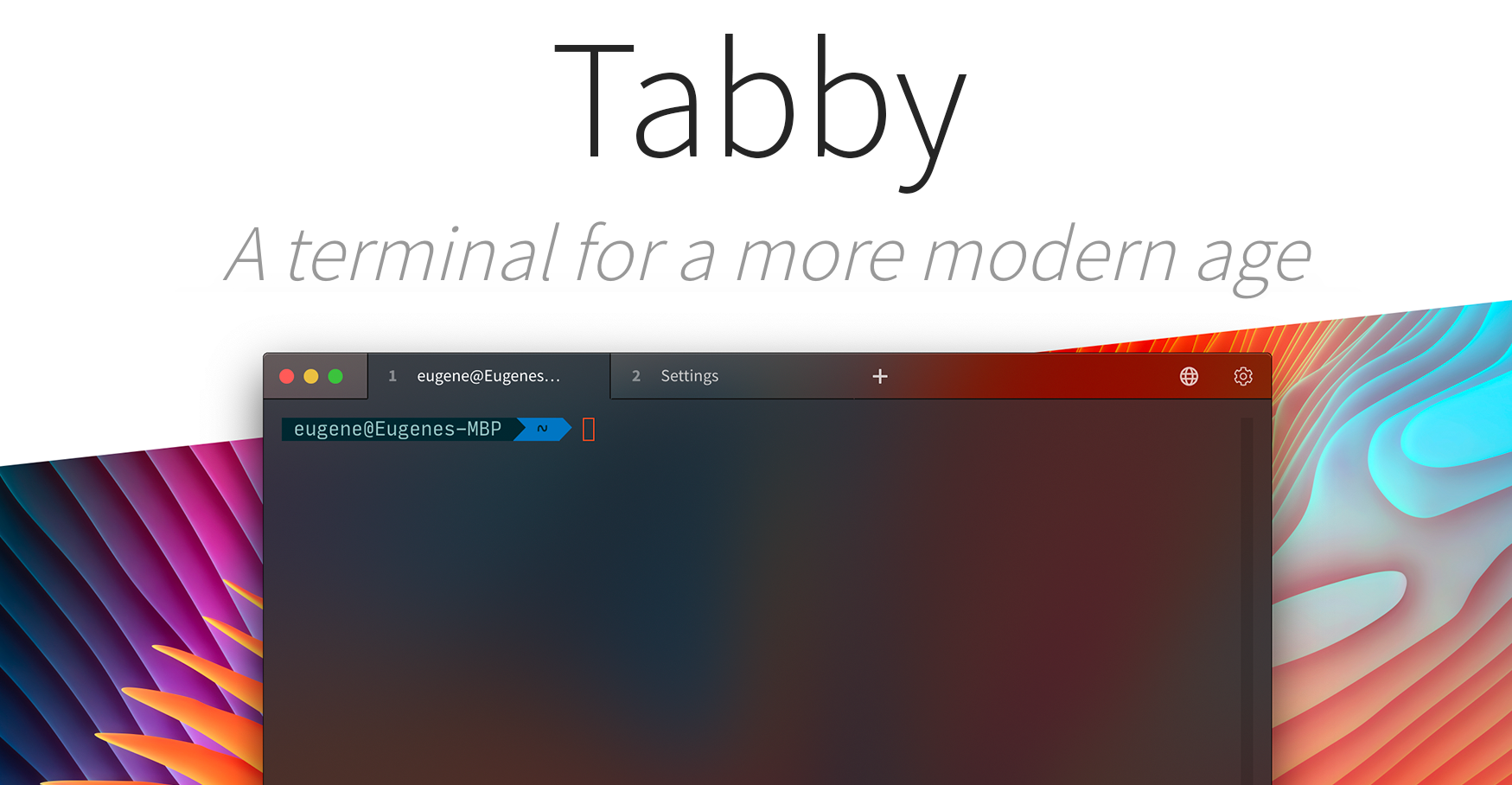
Tabby is a modern terminal and SSH client for Windows users who want tabs, split panes, saved profiles, and a more desktop-friendly workflow than the default console usually offers. It is worth keeping when the terminal is part of your daily setup, because session management, visual clarity, and remote access all feel easier to control from one place.

Tabby is best understood as a terminal workspace rather than a plain command window replacement. You still run PowerShell, Command Prompt, WSL, or SSH sessions inside it, but the product tries to make those tools easier to organize with tabs, panes, profiles, and a cleaner interface.

It fits people who open terminals every day for development, server work, scripting, Git tasks, or remote maintenance. If you only open a shell once in a while, the extra features may feel optional. If your routine already includes several shells or hosts, Tabby becomes much more useful.

The reason to keep it is not just appearance. Session grouping, SSH handling, split views, and a more readable visual layout help reduce friction during real work. It also feels friendlier to users who want a modern desktop tool without giving up serious terminal use.

Expectations still need to stay grounded. Tabby is heavier than a minimal terminal, and a feature-rich setup can become distracting if you spend more time styling it than using it. The practical approach is to treat it as a better command workspace, not as a reason to complicate a simple shell workflow.

This site recommends Tabby for users who want one terminal front end that can handle local shells and remote sessions cleanly. Start by getting your default shell, font, SSH entries, and shortcuts right. If those basics feel better than your current setup after a few days, it has earned a permanent place.


Setup / Usage Guide

Installation steps, usage guidance, and common notes are maintained here.

  1. Start from the official Tabby site. Open the official website and use the Windows download page so you avoid mirrors, stale packages, or community reposts with unclear update history.
  2. Choose the installer that matches your normal workflow. Most users should use the standard Windows installer. Use a portable build only when you deliberately want a self-contained setup.
  3. Finish installation, then launch Tabby before importing old habits. On first open, check that the default shell points to the environment you actually use, such as PowerShell, Windows Terminal, Command Prompt, or WSL.
  4. Set a readable font and theme first. Terminal comfort matters more than decorative tweaking. Get text size, line spacing, and contrast right before you touch anything else.
  5. Create one local profile and one SSH profile. This is the fastest way to judge whether Tabby really improves your workflow. If both feel easy to reopen and manage, the tool is already proving its value.
  6. Test tabs and split panes with a real task. Open a local shell, a Git session, and a remote host together. If switching between them feels simpler than your current setup, that is the result that matters.
  7. Be selective with plugins and advanced options. Add only the extensions or integrations that solve a real problem. An overloaded terminal workspace quickly becomes harder to maintain.
  8. Back up the configuration only after the layout feels settled. Once your shell paths, SSH profiles, shortcuts, and appearance are stable, keep a copy of the config so future reinstalls are painless.

Related Software

Keep exploring similar software and related tools.