Overview

This section highlights the core features, use cases, and supporting notes.

Tabby is a cross-platform terminal app for people who need local shells, SSH, serial, and even Telnet in one consistent workspace instead of juggling separate terminal windows and connection tools. Its real value comes from persistent tabs and split panes, an integrated SSH connection manager with encrypted secrets, strong Windows shell support, optional portable mode, plugin extensibility, and extra workflows such as serial profiles, quake mode, and file transfer.

Tabby is most useful when it is understood as a terminal workspace hub, not just as another terminal emulator with a fresh coat of paint. The official homepage describes it as an infinitely customizable cross-platform terminal app for local shells, serial, SSH and Telnet connections, and that scope is the important part. Many users do not actually have a terminal problem. They have a workflow fragmentation problem: one app for local shells, another for SSH, another for serial sessions, and no shared memory for how those sessions are arranged. Tabby matters because it tries to bring those jobs into one repeatable place.


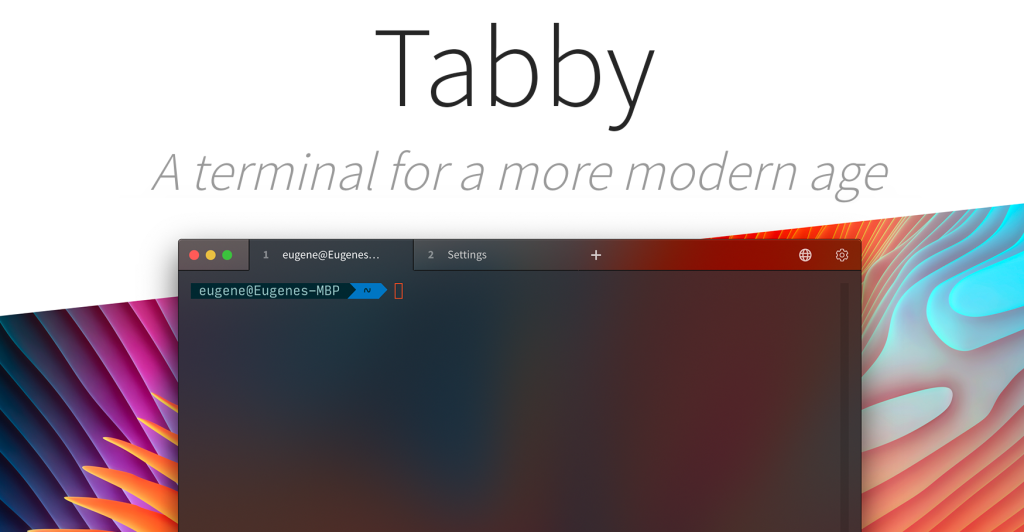
Annotated screenshot of the official Tabby homepage showing the modern terminal positioning and hero interface
This hero screenshot matters because it shows Tabby’s real promise: not just terminal rendering, but one workspace for local and remote command-line work that you can actually keep using every day. Click the image to open the full-size screenshot.

The official feature list is where Tabby’s fit becomes much clearer. The site highlights integrated SSH and serial support, theming, Unicode handling, split-pane memory, shortcuts, and an encrypted container for SSH secrets and configuration. That combination is practical because it reflects how terminal-heavy work actually looks in the real world. Developers, operators, and support engineers often bounce between local shells, remote servers, and device sessions in the same hour. A terminal app that remembers tabs and panes while also managing secrets and connection types has a very different value from a terminal that only opens a shell window nicely.


Annotated screenshot of the official Tabby core feature list showing local shells SSH serial pane memory and encrypted secrets
The core-features screenshot has real value because it reveals why Tabby can replace several narrower tools at once: shells, SSH, serial work, session memory, and secret handling are all treated as part of the same environment. Click the image to open the full-size screenshot.

Tabby’s terminal-side features are also more daily-use oriented than they first sound. The official site calls out nested panes, activity notifications, tab and pane restoration, tabs on any side of the window, optional quake mode, optional global hotkey focus, and bracketed paste. These are not benchmark features. They are flow features. They matter when one terminal window is left open all day and has to stay organized under interruption. For people searching for a terminal with split panes and session restore, or a quake style terminal for Windows, this part of Tabby is one of the strongest reasons to try it.


Annotated screenshot of the official Tabby terminal features section showing split panes restore quake mode and hotkeys
This terminal-features screenshot is useful because it points to the small daily behaviors that make a terminal pleasant over time: pane restore, quick focus, and a layout that survives interruption. Click the image to open the full-size screenshot.

The SSH section shows that Tabby is not treating remote access as an afterthought. The official site lists a connection manager, SFTP and Zmodem transfers, X11 and port forwarding, jump hosts, agent forwarding, login scripts, a built-in password manager with a master passphrase, and proxy command support. That is enough depth for Tabby to be credible as a serious remote-work terminal rather than only a local shell wrapper. The practical reading is that Tabby suits users who want saved remote workflows, not users who only paste one-off host strings into an ad hoc shell.


Annotated screenshot of the official Tabby SSH feature list showing connection manager forwarding file transfer and secrets
The SSH-features screenshot matters because it shows that Tabby is built for recurring remote work with saved structure, not just for typing ssh user@host in a prettier window. Click the image to open the full-size screenshot.

For Windows users, Tabby has a particularly grounded appeal. The official site explicitly lists support for PowerShell, PowerShell Core, WSL, Git-Bash, Cygwin, Cmder, and CMD, along with Explorer menu integration, current directory detection that works, and improved cmd.exe completion through Clink. This is the kind of detail that matters on Windows because terminal life there is often fragmented across shell ecosystems. Tabby becomes easier to justify when one window can move between modern PowerShell work, WSL sessions, and older command-line tools without feeling bolted together.


Annotated screenshot of the official Tabby Windows features section showing shell support Explorer integration and portable mode
This Windows-features screenshot adds real decision value because it highlights where Tabby earns its place on Windows: mixed shell support, Explorer integration, and fewer compromises between environments. Click the image to open the full-size screenshot.

The official GitHub README screenshots make the interface side more concrete than the feature lists alone. The terminal screenshot shows that Tabby is comfortable presenting multiple panes, profile-driven sessions, and a richer workspace layout than minimal terminals usually provide. The official site also mentions CSS-themable appearance, included color schemes, font ligatures, clickable paths and URLs, and plugin extensibility in JavaScript. Together, those details make Tabby more attractive for users who want a terminal that can be shaped around a long-term workflow rather than accepted as a fixed black box.


Annotated screenshot of the official Tabby README terminal interface showing panes and profile driven layout
The README terminal screenshot deserves space because it turns the feature list into something tangible: Tabby is meant to hold a real multi-pane working layout, not just a single command prompt. Click the image to open the full-size screenshot.

The README SSH screenshot helps confirm the other half of the picture. Saved connections, side-panel structure, and a more organized remote layout make Tabby feel like a remote access workspace instead of a plain shell with SSH pasted into it. That matters for jump-host setups, repeated server fleets, and anyone who wants connection details stored with intention rather than rebuilt every time. Our grounded view is that Tabby is most worth installing for users whose command-line life spans several contexts: local shell, remote infrastructure, and sometimes serial devices. It is less necessary for people who only open one shell occasionally and want the lightest possible app. Tabby’s advantage is coordination, memory, and breadth, not minimalism for its own sake.



Annotated screenshot of the official Tabby README SSH interface showing saved connections and remote workflow structure
This SSH interface screenshot is useful because it captures Tabby’s stronger use case: recurring remote work with saved structure and less repeated setup friction. Click the image to open the full-size screenshot.

Setup / Usage Guide

Installation steps, usage guidance, and common notes are maintained here.

The safest way to start with Tabby is to build one stable local workflow and one stable remote workflow first. Once those feel reliable, features such as quake mode, plugins, serial profiles, or deeper SSH options become much easier to add without turning the terminal into a configuration project.

  1. Download Tabby from the official website and install or unzip the build that matches how you prefer to keep terminal tools. If you move tools between machines, keep the official portable option in mind from the start instead of treating portability as an afterthought later.
  2. On first launch, decide which local shell should be your main daily profile. For Windows users this often means choosing between PowerShell, PowerShell Core, WSL, Git-Bash, or CMD rather than leaving everything equally important.
  3. Create or verify one clean local profile and open a few tabs or panes on purpose. Tabby becomes easier to judge once you see how it remembers layout and lets you keep related command-line work in one window.
  4. Before you customize the look heavily, test the basics that affect every session: font choice, Unicode rendering, shortcut comfort, and whether you actually want tabs on a different side of the window.
  5. If your Windows workflow often starts from folders in Explorer, review Tabby's Explorer integration and current-directory behavior early. This is one of the features that can save a surprising amount of friction over time.
  6. Add one SSH connection in the connection manager rather than importing a whole fleet immediately. If you plan to store credentials or related secrets in Tabby, decide whether you want to use the built-in encrypted container with a master passphrase before the list grows.
  7. Test the simplest remote login first. Only after that works cleanly should you move into jump hosts, port forwarding, agent forwarding, or login scripts. Tabby supports those paths, but they are much easier to trust incrementally.
  8. If file movement is part of your remote workflow, test SFTP or Zmodem in a low-risk session so you understand how Tabby handles transfer alongside the terminal session itself.
  9. Once local and SSH profiles feel stable, decide whether quake mode or a global hotkey would actually improve your day. These features are best added to a working routine, not used to compensate for an unclear routine.
  10. If you work with serial devices, create dedicated serial profiles rather than trying to reuse shell habits there. The official site highlights baud-rate handling, newline conversion, multiple input modes, and hexdump output for a reason.
  11. Only after the main local, remote, and serial profiles behave well should you install plugins or start deeper CSS theming. Tabby is extensible, but the base workspace should earn your trust before you stack more moving parts on top.
  12. Use split panes carefully. They are valuable when two sessions genuinely belong together, but too many panes turn the workspace into noise. Start with one useful two-pane pattern and keep it until it proves its value.
  13. If you rely on CMD or older Windows tooling, verify the shell-specific benefits rather than assuming all terminals behave the same. Tabby's Windows support is one of its real differentiators, so it is worth checking with your actual shells, not just a quick demo command.
  14. After a week of real work, decide whether Tabby should become your default terminal hub. It usually makes the most sense when you keep returning to mixed local and remote sessions that benefit from saved layout, connection memory, and broader protocol support.

A practical long-term Tabby setup usually looks like this: one main local shell profile, a deliberate set of saved SSH connections, session layouts that are simple enough to restore cleanly, extra features such as quake mode or serial profiles added only when the core workflow is already solid, and plugins saved for later rather than day one. That path keeps Tabby useful and broad without making it feel bloated.

Related Software

Keep exploring similar software and related tools.