Overview

This section highlights the core features, use cases, and supporting notes.

Tana is an AI knowledge graph and structured outliner best suited to builders, researchers, operators, and heavy note-takers who want flexible node-based thinking instead of plain linear notes. Its strongest differentiators are supertags, graph-native organization, desktop use, and emerging local MCP workflows, but the learning curve is real and today's official web presence is split between the meeting-focused tana.inc front door and the original Tana Outliner product surface.

Tana is unusually easy to misunderstand right now because the official surface is split. The main tana.inc site now emphasizes meetings and action, and it even points users toward the original Tana elsewhere, while the older outliner.tana.inc site still explains the knowledge graph, supertags, Tana AI, desktop app, and local MCP features most long-time users associate with the product. That split is not just branding noise. It changes how you should evaluate the software. If you want an AI meeting tool, the main site is relevant. If you are looking for an AI knowledge graph for note-taking, a structured outliner for research, or a desktop knowledge graph app for builders, the outliner side is still the clearer signal.


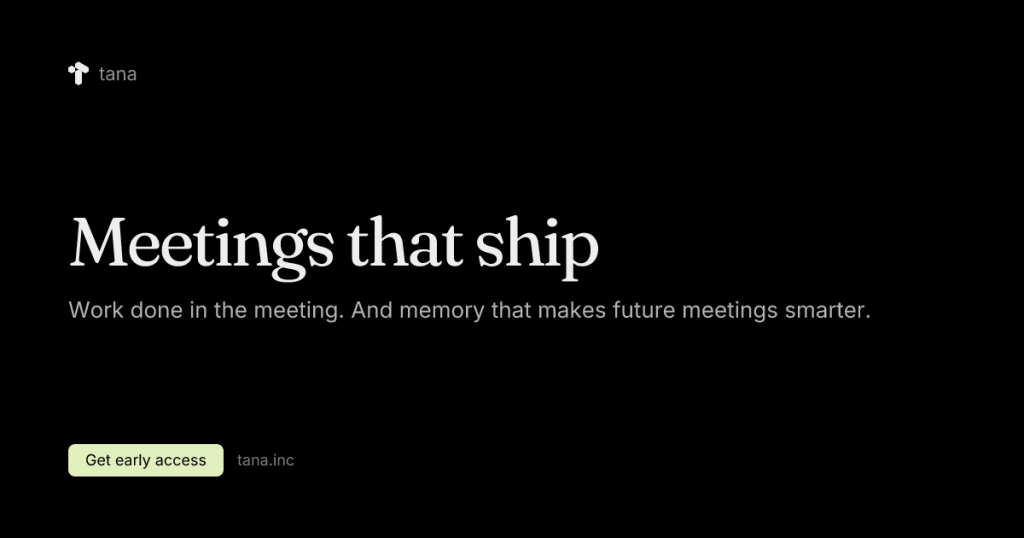
Annotated screenshot of the official Tana homepage showing the meeting-focused positioning and the note that the original Tana lives elsewhere
This homepage screenshot matters because it explains the current confusion clearly: the front door is now meeting-focused, but the original Tana product surface still exists elsewhere in the official ecosystem. Click the image to open the full-size screenshot.

On the outliner pages, Tana’s central idea is stronger than normal note app marketing: write information, not documents. In practice that means notes become connected nodes that can be referenced, reused, filtered, and reorganized later instead of staying trapped inside long pages. That is why Tana appeals to researchers, founders, operators, consultants, and advanced personal knowledge management users who collect more information than simple folders can comfortably hold. A linear notebook works when work stays shallow. Tana becomes interesting when notes need to behave more like a living system than a stack of pages.


Annotated screenshot of the official Tana Outliner knowledge graph page showing the write information not documents positioning
The knowledge graph screenshot earns its place because it shows Tana’s real model: information is meant to stay connected and reusable, not buried in one-off documents. Click the image to open the full-size screenshot.

The real differentiator is supertags. Plenty of tools offer tags, but Tana’s supertags behave more like reusable schemas and action layers. A node can turn into a person, project, meeting, research note, task, or another typed object with consistent fields and behaviors. That is why people searching for a Tana supertags workflow or an AI outliner for builders keep paying attention to it. The upside is powerful flexibility without moving fully into a database app. The tradeoff is just as real: you have to think structurally, and that learning curve is too high for users who only want a quick scratchpad.


Annotated screenshot of the official Tana supertags page showing how notes can become structured workflow objects
This supertags screenshot is valuable because it shows the feature that separates Tana from ordinary note apps. Supertags turn loose notes into repeatable structures that can support real workflows. Click the image to open the full-size screenshot.

Tana AI also makes more sense here than in generic chat wrappers because the notes underneath are already structured. The official docs describe AI across meeting notes, chat with notes, voice memos, and agents, which suggests the system is trying to work on top of a living graph instead of a pile of disconnected text. For users who want meeting notes to knowledge graph workflows, reusable research capture, or a smarter way to query a personal knowledge base, that is a meaningful direction. The caution is simple: AI will only stay useful if the workspace itself stays clean enough to give it good context.


Annotated screenshot of the official Tana AI documentation showing integrated AI across notes and workflows
The Tana AI screenshot matters because it shows that AI is positioned as part of the note system itself, not as a separate chatbot window pasted on top. Click the image to open the full-size screenshot.

The desktop app is another practical reason Tana stands out. The official desktop page highlights Windows, Mac, and Linux support plus offline work, which matters for people who live in their tools all day and do not want serious note-taking trapped in a browser tab. A desktop knowledge graph app can stay beside documents, meetings, terminals, and browsers continuously, making capture and retrieval feel more natural during real work. That does not matter much for casual users, but it matters a lot for operators and researchers who want a durable daily workspace rather than a novelty app.


Annotated screenshot of the official Tana desktop page showing platform support and offline workflow messaging
This desktop screenshot deserves space in the article because serious note systems are judged by daily fit, and browser-only convenience is not always enough once the workflow gets heavier. Click the image to open the full-size screenshot.

For advanced users, Tana’s local API and MCP support push it beyond ordinary note-taking. The official local MCP docs explicitly mention modern CLI agent tools, which is a strong sign that Tana wants to participate in automation and agentic workflows instead of staying a closed notebook. Beginners can safely ignore this at first. But for technical users comparing Tana local MCP options, it is a real differentiator. It means the note graph can eventually connect to retrieval, automation, and external tooling more directly than simpler note apps usually allow.


Annotated screenshot of the official Tana local API and MCP documentation showing the local MCP server references
The MCP screenshot is useful because it shows Tana’s path beyond note capture. For technical users, local API and MCP support can turn a knowledge graph into part of a broader working system. Click the image to open the full-size screenshot.

Our grounded take is that Tana is best for people who are willing to trade simplicity for a more expressive system. If you want instant, obvious, low-learning-curve notes, there are easier tools. If you want an AI knowledge graph for note-taking that can grow into a serious layer for projects, meetings, research, and automation, Tana is unusually compelling. The two biggest cautions are the real learning curve and the split official surface, both of which can slow down first-time evaluation. But for builders, researchers, and operators who think in connected entities instead of isolated pages, the extra setup effort can absolutely be worth it.

Setup / Usage Guide

Installation steps, usage guidance, and common notes are maintained here.

The easiest way to get Tana wrong is to judge it like a normal note app on day one. A better approach is to test one real workflow, keep the structure small, and learn the official site split before you decide whether the product fits your work.

  1. Open the official Tana site from the website button on this page and notice the current split. The main tana.inc site now leads with meetings, while the original Tana Outliner product and docs still live on the outliner.tana.inc side. If you are evaluating knowledge graph note-taking, keep both official surfaces in mind from the start.
  2. Create your account from the official path, then define one specific test scenario before you do anything else. Good first tests include meeting capture, research notes, project tracking, reading notes, or founder operating notes. Avoid trying to model your whole life at once.
  3. If you work on Windows regularly, start with the official desktop version instead of relying on the browser alone. The desktop app is the better environment for sustained daily use, and the official pages explicitly position it as an offline-friendly option.
  4. On first launch, create a small workspace and add only a few real notes. Tana becomes easier to understand when you can see nodes, references, and structure emerge from a small sample instead of from a huge import.
  5. Learn one basic concept first: a note is not just a page. It is a node that can be linked, reused, and reshaped later. If that idea still feels unnatural, slow down here before exploring advanced features.
  6. Next, build one supertag that maps to a repeated object in your work, such as Project, Meeting, Person, Source, or Task. Keep the fields minimal. The goal is to experience a Tana supertags workflow, not to design a giant schema on day one.
  7. Run one full practical test. For example, capture a meeting, tag the important nodes, turn action items into structured tasks, and see whether retrieval feels better than in a plain notebook. Or take a research article, break it into claims and sources, and connect the pieces into a small graph.
  8. Only after the structure starts making sense should you test Tana AI. The official docs position AI as deeply integrated with notes, voice memos, and meeting flows, but the value becomes much clearer once your underlying notes are organized enough to provide context.
  9. If you are technical, read the official local API and MCP docs after the desktop workflow is stable. This is the right moment to decide whether Tana local MCP support could help with CLI tools, automation, or agentic workflows. If you are not technical, skip this step for now and keep the evaluation simple.
  10. Resist over-building. Tana is powerful enough to encourage premature system design, and that is where many new users get stuck. Add structure only where it helps retrieval, review, or action.
  11. Use the official desktop, AI, and documentation pages together when judging fit. The main tana.inc messaging can otherwise make the product look narrower than it actually is, while the outliner pages reveal the deeper knowledge graph use cases.
  12. After a few real sessions, make a hard decision. Keep Tana if structured notes, supertags, and graph-style retrieval actually save you time. Skip it if you still want something simpler, if the learning curve feels too high, or if you do not need connected note objects in daily work.

A sensible evaluation order is: understand the split official surface first, test the desktop workflow second, learn nodes and one supertag third, then explore AI and local MCP only after the basics are stable. That sequence gives the clearest answer about whether Tana belongs in your workflow.

Related Software

Keep exploring similar software and related tools.